This is the ultimate tutorial for removing the eSIM out of your iPhone! Since controlling your device’s connectivity is important, we at Infi Mobile have created a simple, step-by-step tutorial to help you out. We can assist you whether you’re changing providers or just require troubleshooting.
Why remove eSIM?
Let’s briefly discuss the reasons why you might need to remove the eSIM from your iPhone before moving on to the method. Even though eSIM is convenient and flexible, there are times when you might need to upgrade your device, change carriers, or address network problems. For whatever reason, being able to remove your eSIM guarantees that you’re ready for anything.
Step-by-Step Guide:
Configure Access Settings: Start by opening the “Settings” app on your iPhone after it has been unlocked. Usually, you can find this on your home screen.
Choose Mobile or Cellular Data: Find and select “Cellular” or “Mobile Data” from the Settings menu, based on the model and iOS version of your iPhone.
Press the Cellular Plans icon: There is an option under the Cellular or Mobile Data settings called “Cellular Plans” or “Mobile Data Plans.” To continue, tap this option.
Select eSIM: This list contains all of the cellular plans that are configured on your smartphone. Choose the eSIM plan that you want to delete.
Remove eSIM: After choosing the eSIM plan, a number of choices will appear. Locate and touch the “Delete eSIM” or “Remove Cellular Plan” option.
Confirm Removal: You’ll be prompted to confirm that you really do wish to remove the eSIM. Select “Delete” or “Remove,” depending on the question, to confirm your choice.
Observe Any Further Instructions that May Apply: To finish the uninstallation process, you might need to follow further instructions, depending on your carrier and device. These instructions might ask you to input a confirmation code or get help from your carrier.
Give Your iPhone a restart: To make the adjustments take effect, restart your iPhone after the eSIM has been successfully removed.
What Is eSIM and Why Remove It?
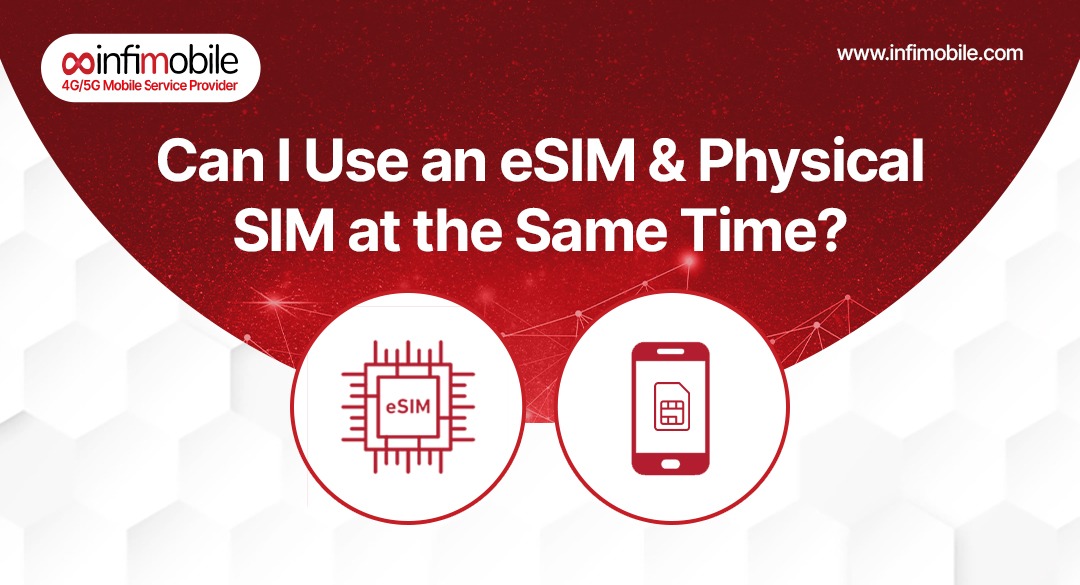
Before diving into the step-by-step process to remove eSIM from iPhone, understanding what eSIM technology is and why you might need to delete eSIM profiles provides important context.
eSIM Technology Explained:
eSIM (Embedded SIM) is a digital SIM technology built directly into modern iPhones (iPhone XS/XR and newer models). Unlike traditional physical SIM cards that you insert into a tray, eSIM is:
Permanently Embedded: Chip is built into the device motherboard—cannot be physically removed
Digitally Programmable: Carrier profiles download over-the-air via QR codes or carrier apps
Multiple Profile Capable: Can store multiple carrier profiles simultaneously (though typically only one or two active at once)
Instant Activation: Enables immediate carrier activation without waiting for physical SIM delivery
Space Efficient: Eliminates SIM card slot, allowing for device design flexibility
iPhone eSIM Models:
Dual eSIM Capability:
- iPhone 13 series and newer (U.S. models)
- Can activate two eSIM profiles simultaneously
eSIM + Physical SIM:
- iPhone XS, XS Max, XR through iPhone 12 series
- Support one eSIM plus traditional physical SIM simultaneously
eSIM Only (No Physical SIM Slot):
- iPhone 14, iPhone 15, iPhone 16 series (U.S. models)
- Exclusively eSIM—no physical SIM slot at all
Common Reasons to Remove eSIM from iPhone
Understanding why you might need to remove eSIM from iPhone helps you determine when this process is necessary for your situation.
Reason #1: Switching Wireless Service Providers
Scenario: You’re changing from one wireless service provider to another (e.g., switching from traditional carrier to Infimobile’s prepaid wireless plans)
Why Remove eSIM:
- Old carrier eSIM profile no longer needed
- Prevents confusion between multiple carrier profiles
- Frees eSIM storage for new carrier profile
- Eliminates potential network conflicts
Process: Remove old carrier eSIM, then activate new Infimobile eSIM
Reason #2: Upgrading to New iPhone
Scenario: Purchasing new iPhone model and transferring service
Why Remove eSIM:
- Old iPhone will be sold, traded, or given to someone else
- New owner needs clean device without your carrier profiles
- Protects your account information and privacy
- Enables new owner to activate their own service
Process: Remove eSIM from old iPhone before transfer, activate eSIM on new iPhone
Reason #3: Troubleshooting Network Issues
Scenario: Experiencing connectivity problems, slow data speeds, or activation failures
Why Remove eSIM:
- Corrupted eSIM profile causing network errors
- Carrier settings conflicts
- Activation incomplete or failed
- Network registration issues
Process: Remove problematic eSIM profile, restart iPhone, re-download fresh eSIM profile
Reason #4: Traveling Internationally
Scenario: Traveling abroad and using temporary local eSIM or international plan
Why Remove eSIM:
- Prevent accidental roaming charges on domestic profile
- Free eSIM slot for temporary international carrier
- Avoid network confusion with multiple active profiles
Process: Remove or deactivate domestic eSIM before travel, activate travel eSIM, restore domestic eSIM upon return
Reason #5: Selling or Gifting iPhone
Scenario: Transferring iPhone ownership to another person
Why Remove eSIM:
- Protect your account information and privacy
- Prevent new owner from accessing your mobile phone plans
- Allow clean activation for new owner
- Remove carrier-specific configurations
Process: Remove all eSIM profiles, factory reset device before transfer
Reason #6: Testing Different Carriers
Scenario: Trying different cellular plans without contract to compare coverage and service
Why Remove eSIM:
- Test various prepaid cell carriers sequentially
- Avoid confusion from multiple stored profiles
- Ensure clean activation for each test carrier
Process: Remove previous test carrier eSIM before activating next carrier
Reason #7: Dual SIM Management
Scenario: Managing personal and business lines, or domestic and international numbers
Why Remove eSIM:
- Deactivate line not currently needed
- Switch between multiple stored eSIM profiles
- Optimize battery life by disabling unused profiles
Before Removing Only eSIM:
If the eSIM you’re removing is your only active line: Have backup connectivity: Physical SIM in device or alternative phone Or plan immediate replacement: Ready to activate new eSIM immediately Emergency access: Consider two-factor authentication dependencies
Removing eSIM eliminates that line’s cellular service immediately—ensure you have alternative connectivity if needed.
Verify Carrier Requirements:
Check with Current Carrier:
Some wireless service providers have specific requirements:
- May need to cancel service separately (though removing eSIM usually auto-cancels)
- Could owe final bills or device payments
- Might have contract obligations to settle
Your iPhone’s eSIM has been successfully removed. Now that you have complete control over your device’s connectivity, you can move forward with confidence, be it upgrading your device, changing carriers, or troubleshooting network issues.
In summary, we at Infi Mobile believe that giving our customers the information and resources they require to maximize their mobile experience is our top priority. You’ve taken the initiative to easily manage your device’s connectivity by adhering to our short guide. Follow our blog for additional helpful hints, guides, and updates to get the most of your Infi Mobile experience!