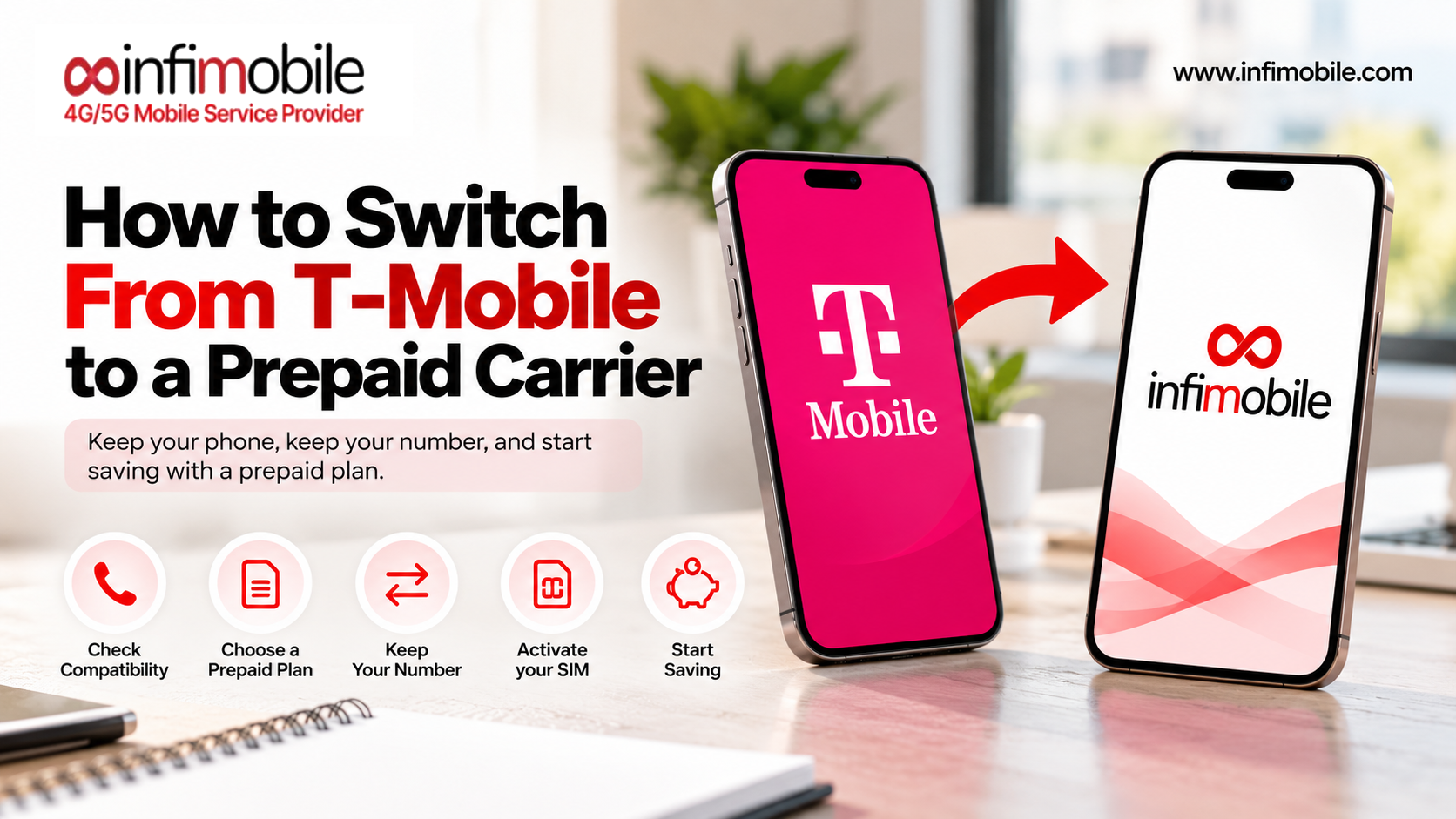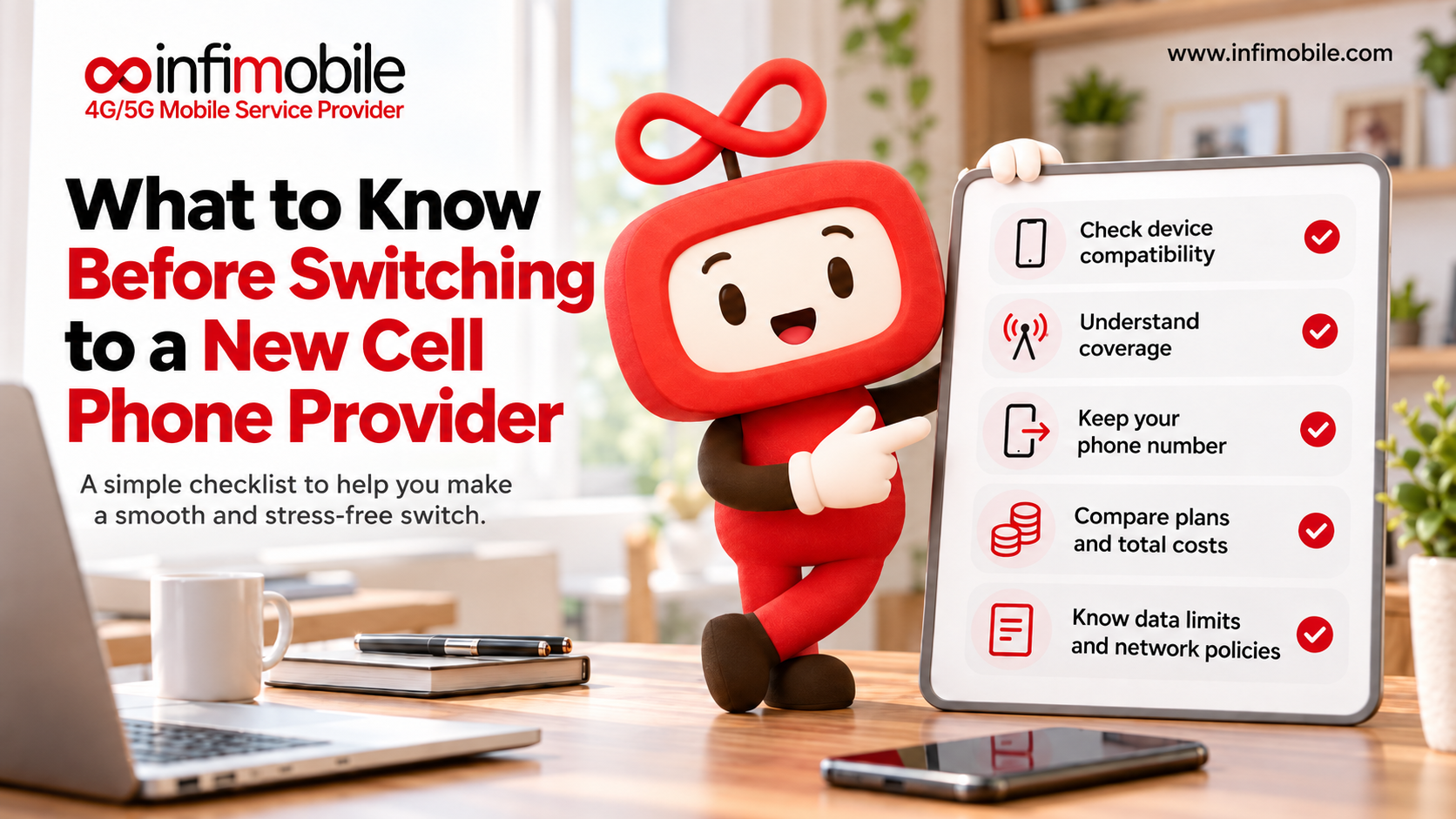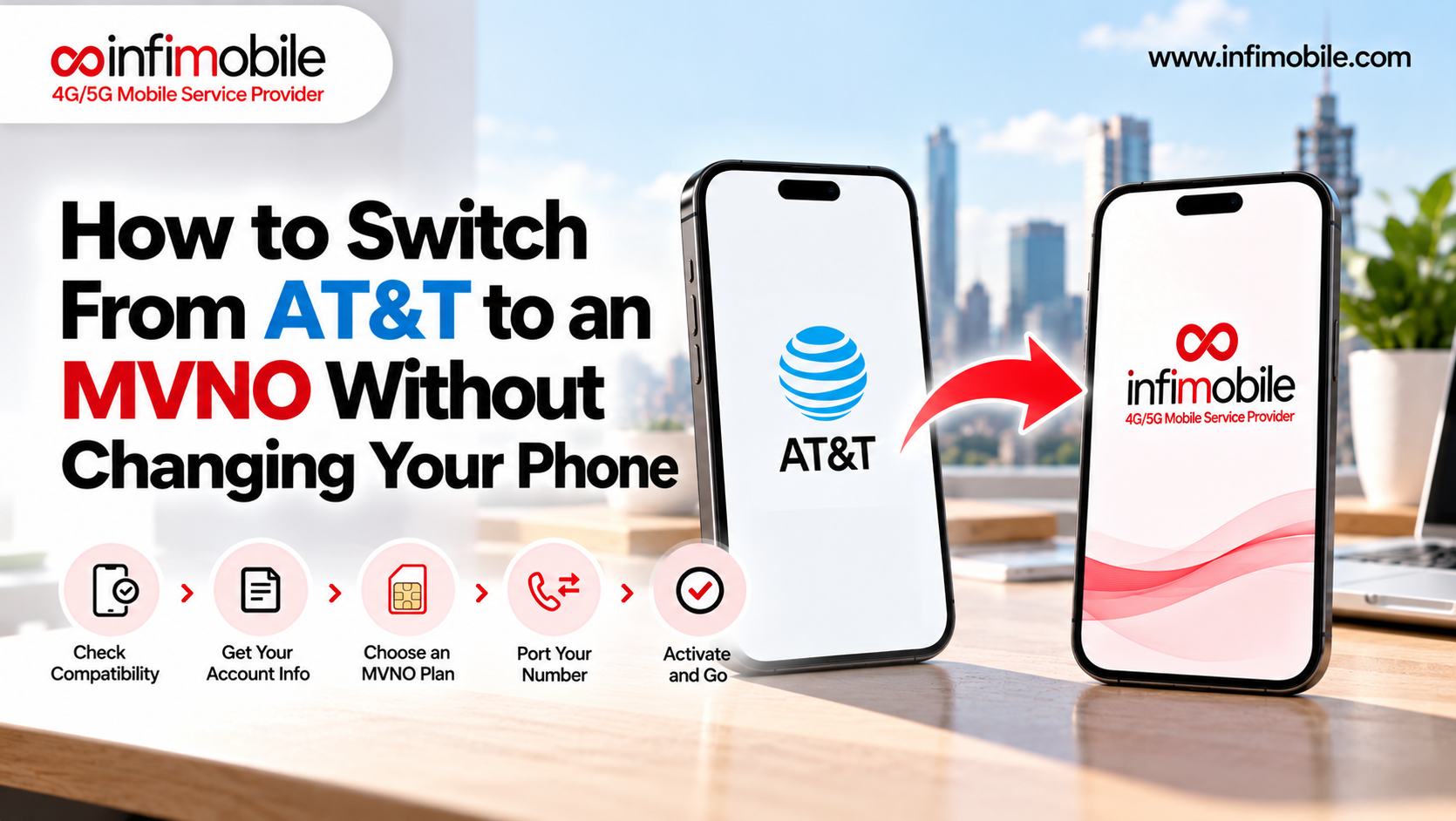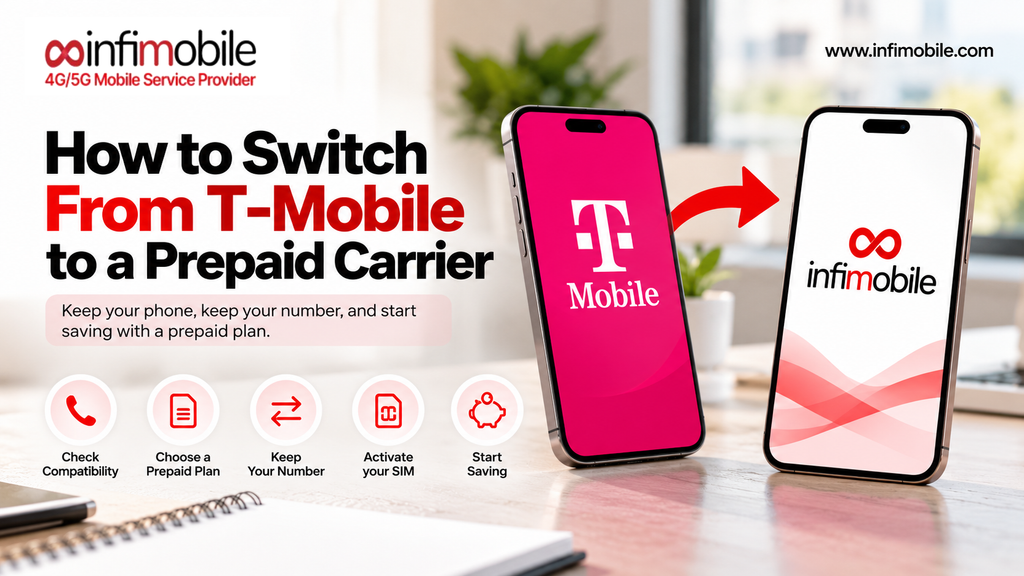
Switching from T-Mobile to a prepaid carrier is one of the easiest wireless switches, partly because many prepaid providers run on the same network. You can keep your phone, keep your number, and in some cases even keep the towers your signal comes from, while changing how you pay and how much you pay.
That doesn’t mean there’s nothing to watch for. Device payments, promotional credits, an unlock requirement, and a security feature called Port Out Protection can all trip up a switch if you hit them in the wrong order. This guide walks you through each step, from checking what you owe to getting your transfer PIN, porting your number, and closing out your T-Mobile account.
Table of Contents
What Changes and What Stays the Same
Step-1-Check What You Owe on Your T-Mobile Account
Step-2-Make Sure Your Phone Is Unlocked
Step-3-Choose Your Prepaid Plan and Network
Step-4-Check Coverage at Your Address
Step-5-Get Your Account Number and Transfer PIN
Step-6-Order Your SIM or eSIM and Port Your Number
Step-7-Activate, Test, and Close Out T-Mobile
Common Problems and How to Fix Them
Who Should Wait Before Switching
FAQs
What Changes and What Stays the Same
Before you start, it helps to know what a switch actually changes.
What stays the same:
Your phone, as long as it’s unlocked and compatible. Your apps, photos, and contacts don’t move.
Your number, which you can port to the new carrier.
Potentially your network. Many prepaid carriers, called MVNOs, lease access to a major network. Infimobile runs on T-Mobile and Verizon, and customers choose their network at activation, so you may be able to stay on T-Mobile’s network if it works well for you.
What changes:
How you pay. Prepaid means paying before you use service, often for a long term such as 12 months.
Plan extras. Postpaid plans sometimes bundle perks like streaming subscriptions or other benefits. Check what’s included on your current plan so you know what you’d be giving up.
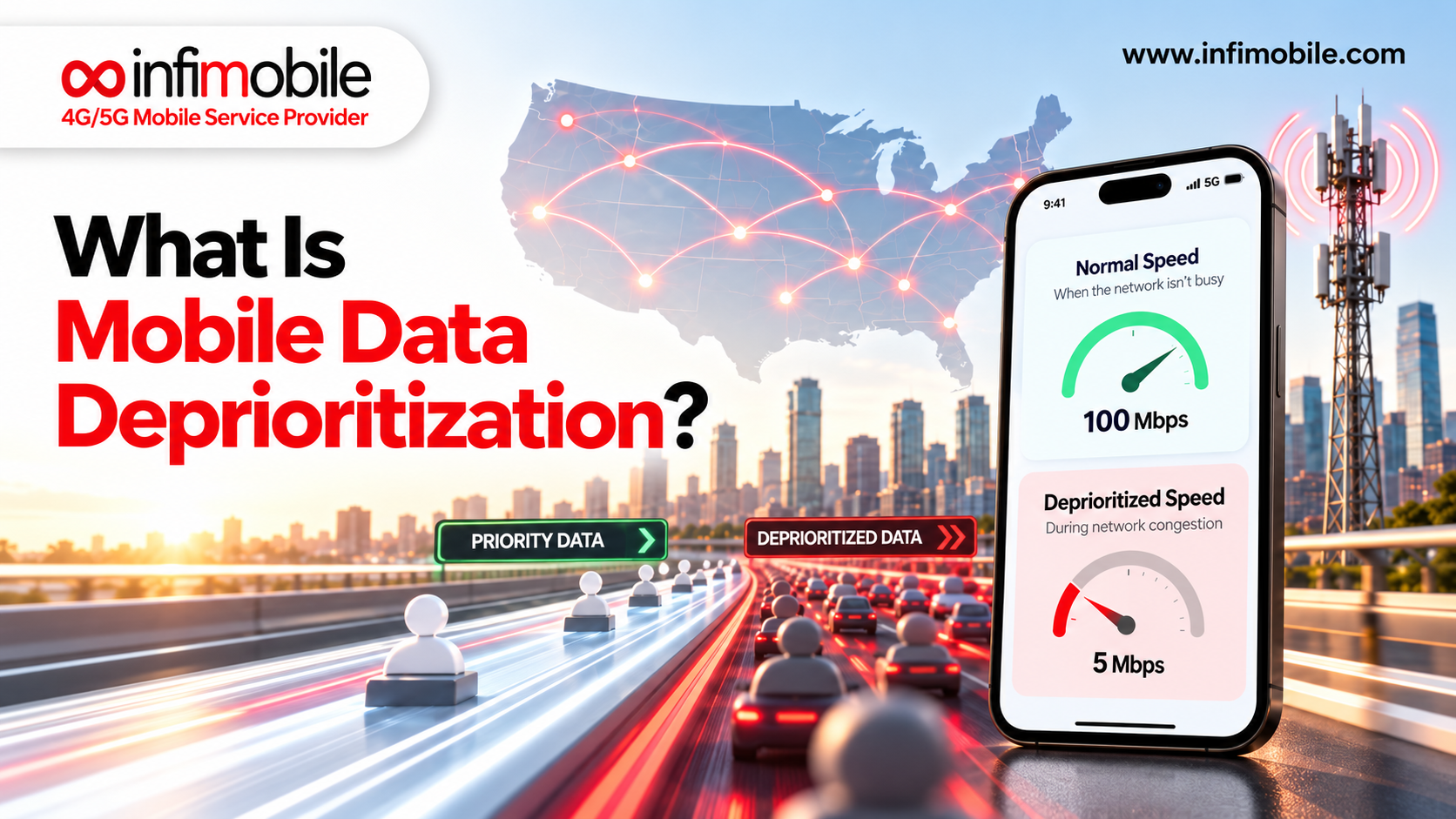
Priority in busy areas. Network owners typically prioritize their own customers during heavy congestion, so MVNO data can occasionally be slower in crowded places at peak times.
Customer service and account management. You’ll deal with your new carrier for support and billing, not T-Mobile.
Step 1: Check What You Owe on Your T-Mobile Account
Before anything else, find out what leaving would cost. For most people, the cost of leaving isn’t the plan; it’s the phone.
Remaining device balance. If you finance a phone through T-Mobile’s Equipment Installment Plan, closing your entire account generally makes the remaining balance due on your final bill. If you remove only one line while others stay active, installment payments may continue monthly on the remaining account instead of coming due all at once.
Promotional bill credits. Many phone deals are paid out as monthly credits over 24 or 36 months. T-Mobile’s promotion terms say that if you cancel your entire account before you’ve received all the credits, the credits stop and the balance on the finance agreement is due. Those terms also note that paying off a device early ends the bill credits on newer promotions.
The final bill. It will include service through the end of your billing cycle, plus any remaining device balance, forfeited credits, taxes, and fees.
Log in to the T-Life app or T-Mobile website, check your installment balance and any active promotions, and compare the total cost of leaving against what you’d save over a year on a prepaid plan. If you have a large balance and valuable credits, the numbers might tell you to wait.
Step 2: Make Sure Your Phone Is Unlocked
A prepaid carrier can only use your phone if it’s unlocked. Policies vary by carrier and have changed over time, so check T-Mobile’s current rules. As widely reported in early 2026, T-Mobile’s unlock policy for postpaid phones sold by T-Mobile requires the device to be paid off and to have been active on T-Mobile’s network for at least 40 days. For prepaid phones, the wait is much longer, generally 365 days of activation unless refill requirements are met.
T-Mobile has said eligible devices can be unlocked through the T-Life app or its unlock page, and some may unlock automatically once they qualify. Because the details depend on when and how you bought the phone, confirm your device’s status before you rely on it.
Next, confirm compatibility. Infimobile asks that phones be unlocked and support 5G or 4G LTE and VoLTE. Dial *#06# to find your IMEI number, then enter it in the compatibility checker at infimobile.com/compatible. SIM-enabled smartwatches, iPads, and standalone routers aren’t currently supported.
If your phone is still locked, you can pay off the balance and request the unlock, wait until it’s eligible, or buy an unlocked phone.
Step 3: Choose Your Prepaid Plan and Network
With your balance and phone status sorted, pick a plan. Useful questions include:
How much data do you actually use? Check the usage screen on your phone or in the T-Life app for the last few months.
Do you need hotspot? Some plans include it, while others offer it as an add-on.
Do you want to pay monthly or upfront? Annual plans usually cost less per month but are paid for the full year at the start.
Which network should you use?
Infimobile’s 12-month plans give you several choices. On its plans page, the 12GB plan is $90 for 12 months (about $7.50 a month), the 20GB Premium plan is $120 (about $10 a month), and Freedom Unlimited is $175 (about $14.58 a month), with unlimited data, speeds reduced after 40GB, and a free 12-month hotspot add-on of up to 10GB per month. Other tiers appear on the plans page, and prices can change with promotions, so confirm current details at infimobile.com/plans.
On network choice: if you’re happy with T-Mobile’s coverage where you live, an MVNO that offers T-Mobile’s network lets you keep the same towers while paying less. If you’ve had trouble with T-Mobile’s coverage in a certain place, choosing Verizon instead may solve it. Network options can vary by plan and device, so confirm what’s available when you check out.
Step 4: Check Coverage at Your Address
Even if you stay on the same network, check coverage before you leave. A few steps make this easy:
Use Infimobile’s coverage and compatibility checker at infimobile.com/compatible to see what to expect where you live and work.
Cross-check T-Mobile’s and Verizon’s public coverage maps for your ZIP code, since your signal comes from whichever network you pick.
Think about busy times and places. Because MVNO data can be slowed during heavy congestion, consider whether you’re often in crowded areas at peak hours.
Try a trial port-in if you want proof. Infimobile offers a trial port-in option in the account portal that lets you test service on a temporary number before moving your real one.
Step 5: Get Your Account Number and Transfer PIN
To move your number, your new carrier needs your T-Mobile account number and a Temporary Port Out PIN, which T-Mobile also calls a transfer PIN.
Account number. For consumer accounts, it’s a nine-digit number found in the top-right corner of your billing statement, and it’s also available in your account.
Temporary Port Out PIN, in the app. Sign in to the T-Mobile app (T-Life), go to Account, then Profile Settings, choose Line Settings, and select Request a transfer PIN.
Temporary Port Out PIN, online. Log in at T-Mobile.com, open My Account, choose Profile, then Line Settings, and select Request a transfer PIN, then Get a transfer PIN.
By phone. Some guides report that you can also dial #PORT# (#7678#) from the T-Mobile line.
Only the Primary Account Holder can generate the PIN. If you’re an authorized user, ask the account holder to request it. If you’re porting more than one line, you may need a PIN for each.
The PIN is temporary. Guides report that it stays valid for roughly five to seven days, so generate it when you’re ready to order and request a new one if it expires.
Turn off Port Out Protection first. T-Mobile’s Port Out Protection is a free security feature that blocks unauthorized number transfers. If it’s on, you’ll need to disable it before the transfer will go through. You can find it in the T-Life app in your account’s add-ons or services, or on the website under your account’s services.
Business and government accounts work differently. Business accounts use T-Mobile’s Account Hub to generate the PIN, and government accounts need to contact T-Mobile directly.
Step 6: Order Your SIM or eSIM and Port Your Number
You’re now ready to place your order. On Infimobile:
Choose your plan and network on the plans page.
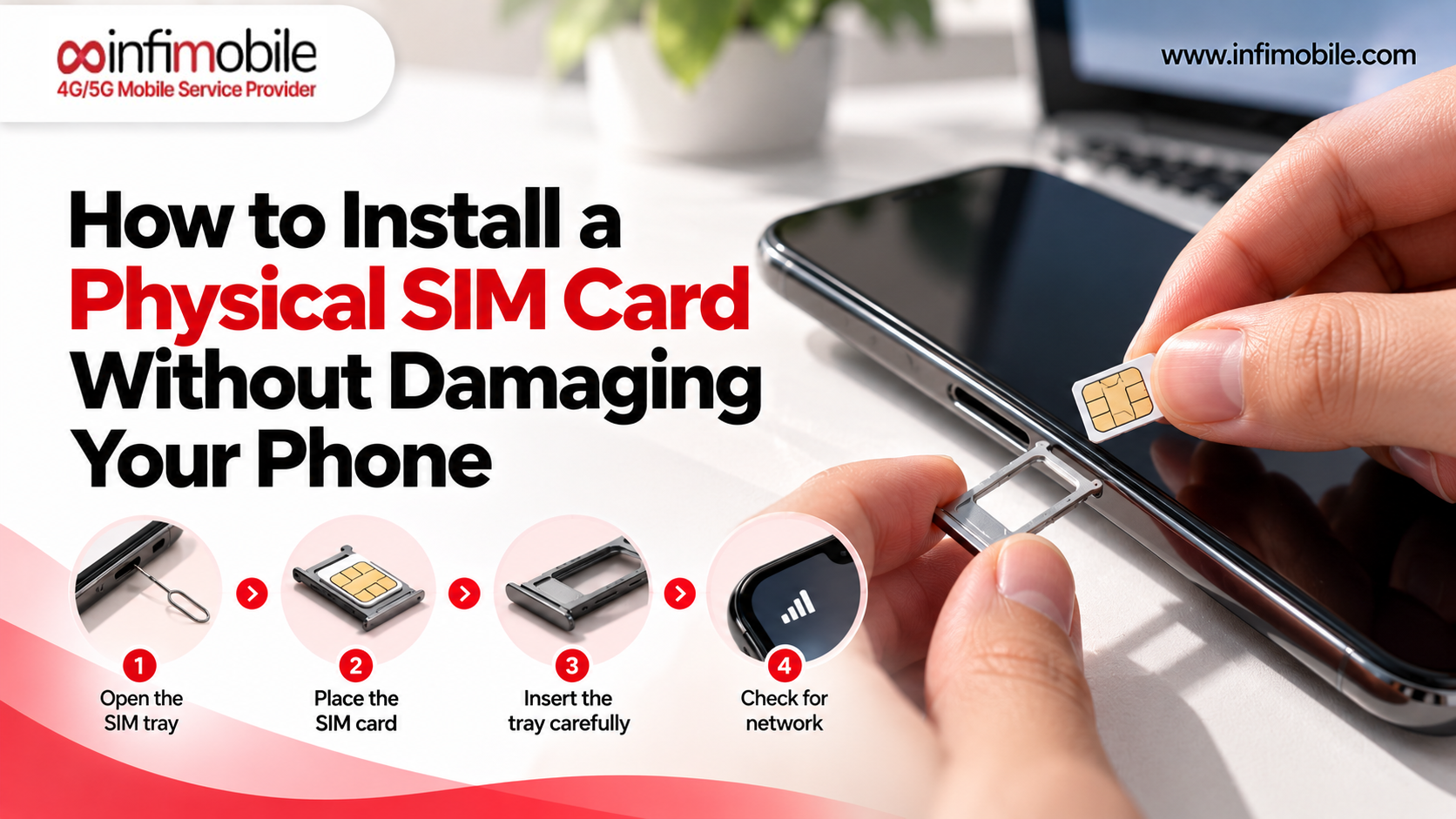
Select your SIM type. Most plans include a 3-in-1 physical SIM kit, and eSIM is available where your phone supports it. If your phone has no SIM tray, choose eSIM.
Choose “Port In” instead of a new number.
Enter your T-Mobile details: your phone number, account number, Temporary Port Out PIN, and billing information. Everything must match T-Mobile’s records exactly, since mismatches are the most common cause of delays and rejections.
Complete checkout. Infimobile then works with T-Mobile to transfer your number.
Step 7: Activate, Test, and Close Out T-Mobile
While your port is processing:
Keep your T-Mobile service active until the port finishes. Don’t cancel first. Canceling early can put your number at risk. If your phone uses a T-Mobile eSIM, wait until the port is complete before deleting that profile.
Expect a short wait. Most ports finish within a few hours to about 24 hours, with 48 hours as a reasonable outside estimate.
Activate and test. For a physical SIM, Infimobile’s help center walks through activation with the 8-digit activation code and the last 10 digits of the ICCID printed on the card. For an eSIM, follow the setup instructions you receive. Once the port completes, restart your phone, make a test call, send a text, and confirm mobile data works.
Check your final T-Mobile bill. Review any remaining device balance, forfeited credits, and charges through the end of your cycle, then make sure AutoPay is turned off once the final bill is settled.
Common Problems and How to Fix Them
The port is rejected for a wrong PIN or account number. Generate a new Temporary Port Out PIN and double-check your nine-digit account number. The PIN is temporary, so an older one may have expired.
Port Out Protection is blocking the transfer. Turn it off in your account, then try again. If you can’t turn it off, contact T-Mobile support.
You’re not the Primary Account Holder. Only that person can generate the PIN, so ask them to do it or to add you as the account holder.
Name or billing address mismatches. Details must match T-Mobile’s records exactly. Update T-Mobile first if you’ve moved.
Your phone is locked. Check your unlock status. You may need to pay off the device and meet the active-service requirement first.
Service hasn’t switched yet. Port timing varies. Keep your T-Mobile line active, restart your phone, and wait up to 48 hours before contacting support.
Data isn’t working after the switch. Restart your phone, make sure mobile data is on, and check that the correct line is selected if you have more than one SIM profile. If it continues, contact Infimobile support at +1 (855) 484-1855 or +1 (678) 608-1414, or by email at support@infimobile.com.
Who Should Wait Before Switching
Switching suits most people, but waiting can be the smarter move if:
You’re in the middle of a promotion with many credits left. Leaving early forfeits them while the full balance comes due.
Your phone isn’t eligible to unlock yet. You’d need to wait or buy an unlocked phone.
You rely on perks bundled with your plan. Make sure the savings outweigh what you’d lose.
You haven’t confirmed coverage. Check your address on the network you’d choose before leaving.
If any of these apply, pick a date when the phone is paid off, or the promotion ends, and plan the switch around it.
Frequently Asked Questions
Yes. You can port your T-Mobile number using your account number and a Temporary Port Out PIN, and you’ll need to turn off Port Out Protection first. Keep your T-Mobile line active until the port completes.
Yes, for a bring-your-own-phone switch. T-Mobile’s postpaid policy, as reported in early 2026, requires the device to be paid off and active on its network for at least 40 days. Check your phone’s status with T-Mobile, then verify compatibility using your IMEI at infimobile.com/compatible.
If you close your entire account, the remaining installment balance generally comes due on your final bill, and promotional bill credits stop. Check your balance and promotions in your T-Mobile account before switching.
Infimobile runs on T-Mobile and Verizon, and customers choose their network at activation, so you may be able to stay on T-Mobile’s network. Network options can vary by plan and device, so confirm at checkout.
Only the Primary Account Holder can generate the Temporary Port Out PIN on a personal account. Authorized users need to ask the account holder. Business and government accounts follow different steps.
Switching from T-Mobile to a prepaid carrier comes down to doing things in the right order: know your balance, unlock your phone, choose a plan and network, turn off Port Out Protection, generate your PIN, and let the port finish before canceling anything. Verify your phone and coverage at infimobile.com/compatible, see current plans at infimobile.com/plans, and contact Infimobile support if you hit a snag.