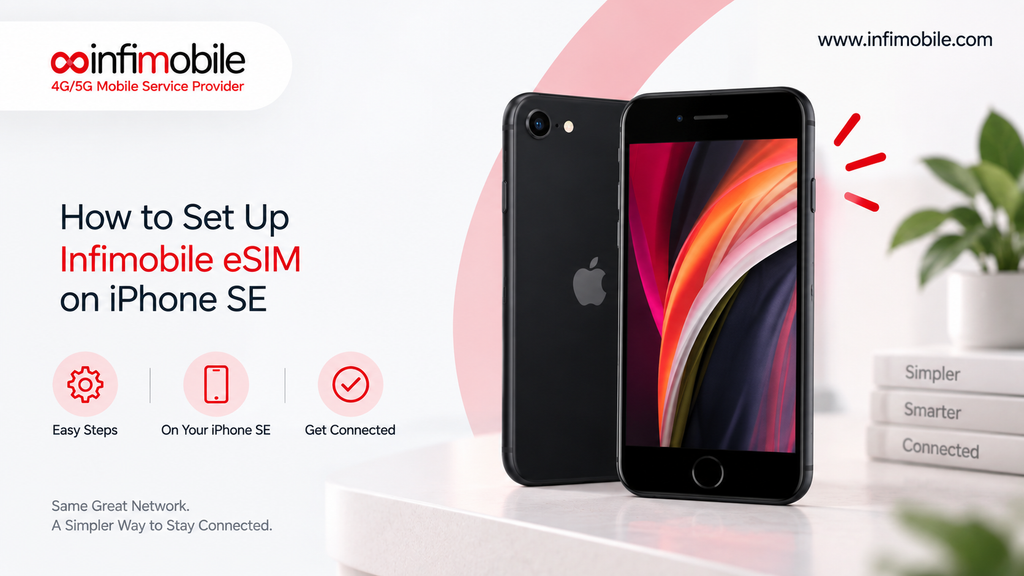
The iPhone SE represents an affordable entry point to Apple’s ecosystem, offering powerful performance without the premium price tag of larger iPhone models. One of the most convenient features available on modern iPhones, including the iPhone SE, is eSIM technology. eSIM, or embedded SIM, eliminates the need for physical SIM cards, allowing you to activate cellular service digitally. Infimobile now supports eSIM activation on compatible devices, making it easier than ever to get started with an affordable mobile service. Setting up Infimobile eSIM on your iPhone SE is a straightforward process that takes just a few minutes. This comprehensive guide walks you through every step of the eSIM activation process, from checking device compatibility to completing your setup and enjoying reliable Infimobile service. Whether you’re upgrading to an iPhone SE or switching to Infimobile for the first time, this guide ensures you can activate eSIM service without confusion or technical difficulties. Let’s explore how to get your iPhone SE connected with Infimobile eSIM today.
iPhone SE Compatibility with Infimobile eSIM
Before beginning the setup process, it’s important to confirm your iPhone SE supports eSIM technology. Apple released multiple generations of the iPhone SE, and eSIM support varies depending on which model you own. The iPhone SE third generation (released in 2022) fully supports eSIM activation with Infimobile. The iPhone SE second generation (released in 2020) also supports eSIM technology, allowing digital SIM card activation. The original iPhone SE (released in 2016) does not support eSIM and requires a physical 3-in-1 SIM card. Check your device specifications or contact Apple Support if you’re unsure which iPhone SE model you own. You can identify your model by going to Settings, selecting General, then About to view your device information. If you own an iPhone SE for third or second generation, you’re ready to proceed with Infimobile eSIM activation. Owners of the original iPhone SE should order Infimobile’s 3-in-1 SIM card kit instead, which includes physical SIM cards compatible with their device.
Understanding eSIM Technology
eSIM technology represents the future of mobile device activation and management. Unlike traditional SIM cards requiring physical insertion into your device, eSIM stores carrier information digitally on your iPhone. This approach eliminates the need to purchase, receive, and install physical SIM cards, streamlining the activation process significantly. eSIM activation is instantaneous, allowing you to switch carriers or adjust your plan without waiting for mail delivery. Many budget-conscious wireless users appreciate eSIM because it removes the barrier to trying new affordable carriers like Infimobile. Dual SIM functionality on iPhone SE means you can maintain two cellular plans simultaneously, with one on eSIM and one on a traditional SIM card. This capability proves valuable for users who need separate personal and work numbers or want to maintain connectivity during carrier switches. Understanding eSIM advantages helps you appreciate why Infimobile’s support for this technology makes activation more convenient than ever.
What You Need Before Starting Setup
Gathering necessary items and information before beginning eSIM setup ensures a smooth activation process. You’ll need your iPhone SE with iOS 16 or later installed. Update your device to the latest iOS version if you haven’t done so recently by going to Settings → General • Software Update. You’ll need an active internet connection, either WiFi or cellular data, to complete eSIM activation. If using cellular data, ensure you have enough data remaining to complete setup. You’ll need a valid email address associated with your Apple ID, as Infimobile may use this for account verification. Have your payment method ready, whether a credit card, debit card, or other accepted payment options. You’ll need to know which Infimobile plan you want to activate, with plan details available on Infimobile’s website. You’ll need access to Infimobile’s website or customer portal to initiate eSIM activation. Some users find it helpful to have a secondary device available to access Infimobile’s customer portal during setup, though this is not strictly required. Gathering these items beforehand prevents interruptions during the activation process.
Step-by-Step eSIM Activation Guide
Step 1: Access Infimobile’s Website and Choose Your Plan
Start by visiting Infimobile’s website on your iPhone SE or another device. Browse through available prepaid wireless plans, including the 5GB Pro Plus Plan at $75 monthly, the 15GB Promotional Plan at $150 monthly, or the 40GB Freedom Unlimited Plan at $175 monthly. Review plan features, including data allowances, unlimited talk and text capabilities, and additional features like WiFi calling. Select the plan that best suits your data needs and budget. Click the Order Now button next to your chosen plan. You’ll be directed to the checkout process where you can review plan details and pricing.
Step 2: Select eSIM as Your Delivery Method
During the ordering process, you’ll encounter options for how to receive your SIM card. Look for the eSIM option and select it as your delivery method. eSIM delivery is instantaneous, allowing you to activate service immediately rather than waiting for physical mail. Traditional 3-in-1 SIM card options are also available if you prefer, but eSIM offers the fastest activation method. Confirm that eSIM is selected before proceeding to the next step. Selecting eSIM ensures you receive digital activation instructions rather than physical SIM card shipment.
Step 3: Enter Your Personal Information
Provide your full name, email address, and billing address as requested. Ensure all information is accurate, as Infimobile uses this for account verification and billing purposes. Double-check the spelling and accuracy of your email address, as this is where activation instructions will be sent. Select your state of residence from the dropdown menu. This information helps Infimobile comply with regulatory requirements and ensures proper billing.
Step 4: Complete Payment Information
Enter your credit card, debit card, or other accepted payment method information. Ensure your billing address matches your payment method information. Review the plan cost and confirm there are no additional fees beyond the stated monthly rate. Infimobile’s prepaid plans offer transparent pricing without hidden charges. Click the purchase or activate button to complete your order and initiate eSIM activation.
Step 5: Receive Your eSIM Activation Code
After completing your purchase, Infimobile will send activation instructions to your email address within minutes. Check your email inbox and spam folder for a message from Infimobile containing your eSIM activation code or QR code. This activation code is essential for completing eSIM setup on your iPhone SE. If you don’t receive the email within 10 minutes, contact Infimobile customer support for assistance. Keep this email open and accessible, as you’ll reference it during the next setup steps.
Step 6: Configure eSIM on iPhone SE
On your iPhone SE, open Settings and navigate to Cellular. Select Add Cellular Plan or Add eSIM. You’ll see an option to Scan QR Code or Enter Details Manually. If Infimobile provided a QR code in your activation email, select Scan QR Code and position your iPhone to capture the code. Your iPhone will automatically scan and recognize the code. If a QR code is unavailable, select Enter Details Manually and input the activation information provided by Infimobile. Follow the on-screen prompts to complete eSIM configuration.
Step 7: Label Your eSIM and Confirm Activation
Your iPhone SE will prompt you to label your cellular plan. You can name it Infimobile, Personal, or any identifier you prefer. This label helps distinguish between multiple cellular plans if you use dual SIM functionality. Confirm that Infimobile appears in your cellular settings. Your iPhone should indicate that eSIM activation is complete and service is active. You may see a notification confirming successful activation.
Step 8: Test Your Connection
Once eSIM activation completes, test your connection by making a phone call or sending a text message. Place a call to a friend or family member to confirm voice connectivity works. Send a text message to verify SMS functionality. Open a web browser and load a website to confirm data connectivity. If all three communication methods work, your Infimobile eSIM setup is complete and functional.
Common Setup Issues and Troubleshooting
eSIM activation generally works smoothly, but occasional issues may arise. If your iPhone doesn’t recognize the eSIM activation code, restart your device and try again. Ensure your iOS version is up to date, as older versions may not fully support eSIM activation. If you receive an activation error message, contact Infimobile customer support with your account information and error code. If you don’t receive activation instructions via email, check your spam folder and email filters. Add Infimobile to your contacts to prevent future emails from going to spam. If your device shows eSIM activation complete but no signal appears, verify airplane mode is off, and cellular data is enabled in settings. If you still lack connectivity after troubleshooting, contact Infimobile’s customer support team for technical assistance. The support team can verify your account status and provide additional activation steps if needed.
Managing Your Infimobile eSIM
After successful eSIM activation, managing your account is straightforward. Access Infimobile’s customer portal online to view your data usage, remaining balance, and billing information. You can upgrade or downgrade your plan through the customer portal, with changes taking effect at your next billing cycle. If you purchase a device with eSIM capability, you can often reactivate your Infimobile service on the new device by transferring your eSIM. Set up autopay through your account settings to ensure uninterrupted service. Contact Infimobile customer support if you need to pause service, change your plan, or have billing questions. Your eSIM is a digital asset stored on your iPhone, so it remains secure and cannot be lost or damaged like physical SIM cards.
Leveraging Dual SIM Functionality with Infimobile eSIM
iPhone SE supports dual SIM capability, allowing you to maintain two cellular plans simultaneously. You can use Infimobile eSIM as your primary plan while keeping a traditional SIM card from another carrier as a backup. This configuration offers connectivity redundancy, ensuring you maintain service if one carrier experiences outages. Professionals can use Infimobile eSIM for personal communications while maintaining a work plan on the physical SIM. Travelers can activate Infimobile eSIM for domestic use while traveling internationally with a local carrier SIM in their device. Configure which line receives calls, texts, and data through Settings by designating a primary and secondary line. This flexibility makes the iPhone SE with dual SIM an attractive option for users with diverse connectivity needs.
eSIM Security and Privacy Considerations
eSIM technology offers security advantages over physical SIM cards. Your eSIM data is encrypted on your device and cannot be extracted or duplicated like physical SIM cards. eSIMs cannot be lost or stolen because they’re embedded in your iPhone rather than carried on a physical card. If you lose or damage your iPhone, your eSIM remains secure and cannot be accessed without your device authentication. Protect your iPhone with a strong passcode and Face ID to prevent unauthorized access to your Infimobile service. eSIM reactivation on a new device requires Infimobile account authentication, preventing unauthorized service transfers. Infimobile uses industry-standard encryption and security protocols to protect your personal and billing information. Review Infimobile’s privacy policy to understand how your data is collected, stored, and protected.
Switching from Physical SIM to eSIM
If you’re currently using Infimobile with a physical 3-in-1 SIM card and want to switch to eSIM, the process is simple. Contact Infimobile customer support and request eSIM activation for your existing account. Provide your account details and phone number. Infimobile will issue new eSIM activation instructions via email. Follow the eSIM activation steps outlined in this guide to complete the switch. Once eSIM activation is complete, you can remove your physical SIM card from your iPhone SE. eSIM switching typically completes within minutes, providing minimal service interruption. Keep your physical SIM card safely stored in case you need to reactivate it on another device.
Frequently Asked Questions
Answer: Yes, iPhone SE supports dual SIM, allowing you to use Infimobile eSIM with another carrier’s physical SIM card simultaneously. This is useful for maintaining both personal and work numbers or having a backup carrier.
Answer: eSIM activation typically completes within minutes of purchasing your plan. You receive activation instructions via email immediately and can begin using the service once you complete the eSIM configuration on your iPhone SE.
Answer: Contact Infimobile immediately to suspend service. Since the eSIM is embedded in your device, an unauthorized person would need your iPhone’s passcode and Face ID to access service. Once you get a new device, contact Infimobile to reactivate your eSIM on the new iPhone SE.
Answer: Infimobile typically provides a QR code for easy activation, but you can also enter activation details manually if needed. Both methods work equally well on iPhone SE. The QR code method is faster and less prone to manual entry errors.
Answer: Yes, you can upgrade or downgrade your Infimobile plan anytime through your customer account portal. Changes take effect at your next billing cycle. No eSIM changes are necessary when switching between Infimobile plans.
Conclusion
Setting up Infimobile eSIM on iPhone SE is quick, secure, and straightforward. Within minutes of purchasing your plan, you’ll receive activation instructions and be ready to enjoy affordable, reliable wireless service. eSIM technology eliminates the wait for physical SIM card delivery, allowing instant activation whenever you need it. iPhone SE’s dual SIM capability provides added flexibility, letting you maintain multiple plans simultaneously. With this comprehensive guide, you now have everything needed to activate Infimobile eSIM on your iPhone SE. Start enjoying budget-friendly prepaid wireless service today.