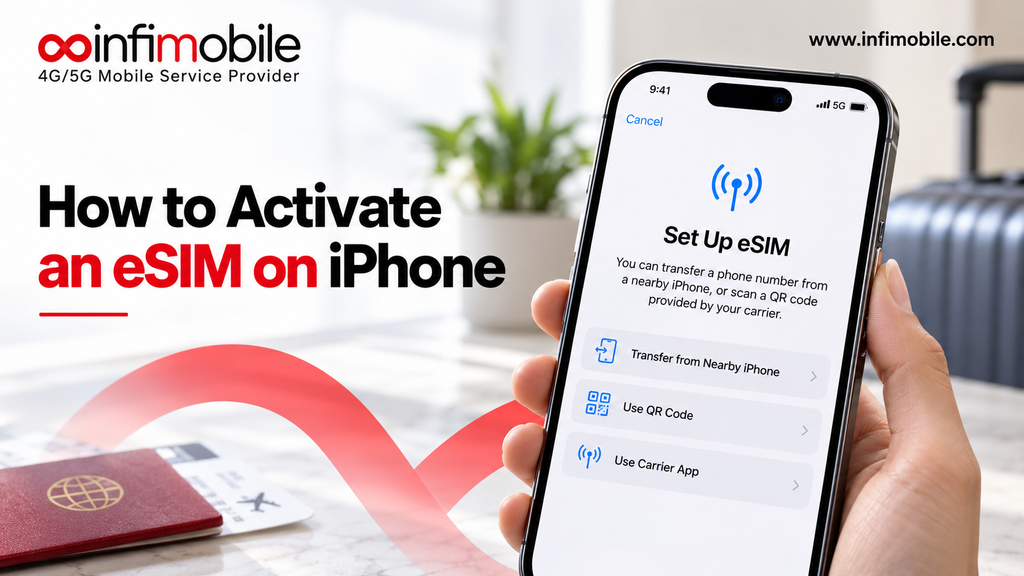
To activate an eSIM on iPhone, make sure your phone is unlocked and eSIM-compatible, connect to Wi-Fi, and open Settings. Tap Cellular, choose Add eSIM, scan the QR code from your carrier, and follow the prompts. Most people finish in under ten minutes.
An eSIM is a digital SIM that lives inside your phone, so there is no tray, no tiny card, and no waiting for something to arrive in the mail. That is convenient, but the setup can feel confusing the first time, especially if you are moving from a physical SIM or switching to a prepaid plan.
This guide explains how an iPhone eSIM works, which models support it, and exactly how to activate an eSIM on iPhone using a QR code or manual details. You will also find a post-activation checklist, fixes for common problems, and a look at the Infimobile 12GB plan for readers who want a simple prepaid option.
What Is an eSIM and How Does It Work on an iPhone?
An eSIM, short for embedded SIM, is a small chip built into your iPhone that stores carrier profiles digitally. Instead of inserting a physical card, you download a profile that tells your phone which network to join and which phone number to use.
Here is what that means in everyday terms:
- No physical card: The profile is installed with a QR code, an app, or a set of codes you enter by hand.
- Easy switching: An iPhone can store more than one eSIM profile, so you can keep a second number or add a travel plan later.
- Same everyday service: Calls, texts, and mobile data work the way they do with a regular SIM. Your plan, not the SIM type, decides your data and talk limits.
An eSIM profile is usually tied to one phone at a time. If you buy a new iPhone later, you will need to transfer the profile or ask your carrier for a new one.
Which iPhones Support eSIM?
Apple introduced eSIM with the iPhone XS, iPhone XS Max, and iPhone XR. Every iPhone released after those models supports it too. On top of that, U.S. models of the iPhone 14 series and newer have no physical SIM tray at all, so eSIM is the only choice on those phones.
| iPhone | eSIM support |
| iPhone X and older | No |
| iPhone XS, XS Max, XR through the iPhone 13 series | Yes, alongside a physical SIM tray |
| iPhone 14 series and newer (U.S. models) | Yes, eSIM only |
If you are not sure about your model, open Settings, tap General, then About. An iPhone with eSIM support shows an EID number on that screen. You can also check the model name there and compare it with the list above.
What You Need Before You Start
A few minutes of preparation prevents most activation errors. Before you begin, gather the following:
- An unlocked iPhone: Go to Settings, General, About, and find Carrier Lock. It should say “No SIM restrictions.” If it names a carrier, ask that carrier to unlock the phone first.
- A stable Wi-Fi connection: Your iPhone needs internet access to download the eSIM profile, and a steady Wi-Fi network is safer than weak mobile data.
- Your activation details: This is usually a QR code sent by email or shown in your account. Some carriers provide codes for manual entry instead.
- The latest iOS update: Updates include carrier and eSIM improvements, so install any pending update before you begin.
- Your IMEI number: Prepaid carriers often ask for it to confirm compatibility. You can find it in Settings> General> About.
- A plan for your old number: If you want to keep your current phone number, start the port request before you cancel your old service.
How to Activate an eSIM on iPhone Step by Step
Menu names can differ slightly between iOS versions. Some phones say Cellular, others say Mobile Service. The steps below cover the most common paths.
Method 1: Activate With a QR Code
This is the most common way to activate an eSIM on iPhone.
- Open Settings and tap Cellular.
- Tap Add eSIM.
- Tap Use QR Code.
- Point your camera at the QR code and hold steady until it is recognized. If the code is on the same iPhone, open it on a laptop or another phone instead, because you cannot scan your own screen.
- Tap Continue when asked, and enter the confirmation code if your carrier provided one.
- Wait while the plan activates. Keep the Settings screen open until it finishes.
- Choose a label for the line, such as Primary, Secondary, or a custom name.
- Pick your default line for calls, iMessage, FaceTime, and cellular data, then tap Done.
You can also scan the code with the regular Camera app. When your iPhone detects it, tap the Cellular Plan notification and follow the same prompts.
Method 2: Enter the Details Manually
If the QR code will not scan, or you only have text codes, use this route.
- Go to Settings, then Cellular, then Add eSIM.
- Tap Use QR Code, then choose Enter Details Manually at the bottom of the screen.
- Type the SM-DP+ address and the activation code exactly as your carrier gave them. The SM-DP+ address is simply the server that delivers your eSIM profile.
- Add the confirmation code if one was provided, then tap Next.
These codes are case-sensitive, and one wrong character can cause an error. Copying and pasting from an email is safer than typing.
Method 3: Transfer an eSIM From Another iPhone
If you are upgrading phones and your carrier allows it, you can move your line over without a new QR code. On the new iPhone, go to Settings, Cellular, Add eSIM, and look for the option to transfer from a nearby iPhone. Your old phone will show a confirmation code to enter on the new one. Carrier support for this varies, so check with yours first.
How to Activate an Infimobile eSIM on Your iPhone
Infimobile is a prepaid provider that works through its website and mobile app, since it does not operate physical stores. Based on the activation steps in the Infimobile help center, the process looks like this:
- Confirm your phone works: Make sure your iPhone is unlocked and supports eSIM.
- Find your IMEI: Open Settings, General, About. If your iPhone lists two IMEI numbers, check which one your order asks for. For eSIM, it is typically the second one.
- Start activation: Go to the Infimobile website or app, choose Activate SIM Card, then select eSIM Activation.
- Enter your details: Add the activation code from your email notification, your IMEI, and your ZIP code.
- Review your choices: You can confirm or edit your address details and choose options such as Auto Renewal and hotspot. If you have a referral code, enter it here.
- Tap Activate: After a successful activation, you receive a QR code.
- Scan the code on your iPhone: Follow Method 1 above to install it through Settings, Cellular, Add eSIM.
Screens can change over time, so follow any on-screen instructions if they differ from the list above.
What to Do After Your eSIM Is Active
Activation is only half the job. A quick check now saves frustration later:
- Check your signal: Look for signal bars and the carrier name at the top of the screen or in Control Center.
- Test the basics: Make a call, send a text, and load a web page using mobile data.
- Confirm cellular data: Go to Settings, Cellular, tap your new plan, and make sure Turn On This Line and Cellular Data are enabled.
- Review iMessage and FaceTime: Open Settings, Messages, Send & Receive, and confirm your number is selected.
- Try Wi-Fi Calling: If your plan supports it, turn it on to improve calls in places with weak signal.
- Restart your iPhone: A simple restart often clears small activation glitches.
- Protect your QR code: Treat it like a password and do not share it.
Using an eSIM Alongside Another Line
An iPhone can run two lines at once, so you can add an Infimobile eSIM while keeping an existing number on a physical SIM or another eSIM.
Pay attention to these settings:
- Default Voice Line: Decides which number is used for outgoing calls unless you pick another.
- Cellular Data: Decides which plan supplies your mobile data.
- Allow Cellular Data Switching: When on, your iPhone may use the other line’s data if the signal drops. That can quietly use data from a plan you did not intend to spend.
Common eSIM Problems on iPhone and How to Fix Them
| Problem | Likely cause | What to try |
| Activation fails or stops midway | Weak Wi-Fi or a code that was already used | Reconnect to stable Wi-Fi, restart, and ask the carrier for a new QR code if it still fails |
| QR code will not scan | Code shown on the same phone, glare, or a damaged image | Open it on a second screen or enter the details manually |
| Message about a carrier lock | The iPhone is still locked to another carrier | Ask the previous carrier to unlock it, then try again |
| No signal after activation | The line is off or another line is set for data | Turn on the line in Cellular settings, toggle Airplane Mode, and restart |
| Calls work but data does not | Cellular Data is set to another line, or plan data is used up | Select the correct line for data and check your remaining balance |
| Old number did not move over | The port request is still processing | Wait for the carrier to complete it and contact support if it takes too long |
Common Mistakes to Avoid
- Deleting the eSIM too early: Once you remove an eSIM profile from your iPhone, you often need a new code from the carrier to install it again.
- Skipping the unlock check: A locked iPhone is the most common reason an eSIM from a new carrier fails.
- Cancelling the old plan first: If you want to keep your number, make sure the transfer is complete before ending the old service.
Infimobile 12GB Plan: $90 for 12 Months
If you are activating an eSIM because you want a simpler, lower-cost prepaid plan, the Infimobile 12GB plan is worth a look. Here is how it breaks down:
- Data: 12GB per month
- Term: 12 months
- Price: $90 for the full 12 months, which works out to $7.50 per month
- Hotspot: 5GB of free hotspot per month, available on the premium network only
The plan suits people who use Wi-Fi at home and work and need mobile data mainly while out and about. The included hotspot is handy when you need to connect a laptop or tablet for a short time. Because the hotspot allowance applies to the premium network only, check that your area is covered before relying on it for important work.
A few honest limits apply. 12GB is not unlimited data, so heavy streamers and gamers may need a larger plan. Pricing and promotions on prepaid plans change from time to time, and Infimobile service depends on device compatibility, so confirm current details on the plans page before you buy.
Frequently Asked Questions
The profile itself usually installs within a few minutes once you scan the code. Service can take longer if you are also transferring a number from another carrier. If you see no signal after ten minutes, restart your iPhone and confirm the line is turned on in Cellular settings.
No. A QR code is linked to one eSIM profile, and most carriers issue codes that work once. If you move to a different iPhone, use the carrier’s transfer option or request a new code instead of rescanning the old one.
It depends on the option you choose. When you select Erase All Content and Settings, iOS asks whether you want to keep your eSIM plans or erase them. Choose the option to keep them if you plan to continue using the same line on that phone.
Once your eSIM is active, open Settings, tap Personal Hotspot, and turn on Allow Others to Join. Then connect your laptop or tablet from its Wi-Fi list using the password shown. Remember that the free 5GB monthly hotspot allowance applies to the premium network only.
Often yes, if your carrier supports it. Go to Settings, Cellular, and look for Convert to eSIM next to your current line. If the option is missing, your carrier may not offer conversion, and you will need to request an eSIM from them directly.
Final Thoughts
Learning how to activate an eSIM on iPhone comes down to a few simple steps: confirm your phone is unlocked and compatible, keep your activation details handy, scan the QR code through Settings, Cellular, Add eSIM, and finish with a quick check of calls, texts, and data. If something goes wrong, a stable Wi-Fi connection, a restart, or a fresh code from your carrier usually solves it.
For readers who want a straightforward prepaid option, the Infimobile 12GB plan offers 12 months of service for $90, with 5GB of free hotspot per month on the premium network only. You can compare it with other options on the Infimobile plans page and start your eSIM setup in a few minutes.