You bought an Infimobile eSIM plan expecting to be online in minutes, and instead you’re staring at an error message. It’s one of the more frustrating hiccups in an otherwise simple process, and it happens more often than you’d think, not because eSIM technology is unreliable, but because activation depends on a handful of small conditions lining up at once: a stable internet connection, a compatible and unlocked phone, a code that hasn’t been used before, and a clean scan.
The good news is that nearly every “Infimobile eSIM QR code not working” issue traces back to one of a small number of causes, and each one has a straightforward fix. This guide covers what an eSIM QR code actually does, the most common errors people run into during Infimobile activation, exactly how to resolve each one, and when it’s simplest to just contact Infimobile’s support team and let them sort it out for you.
What an Infimobile eSIM QR Code Actually Does
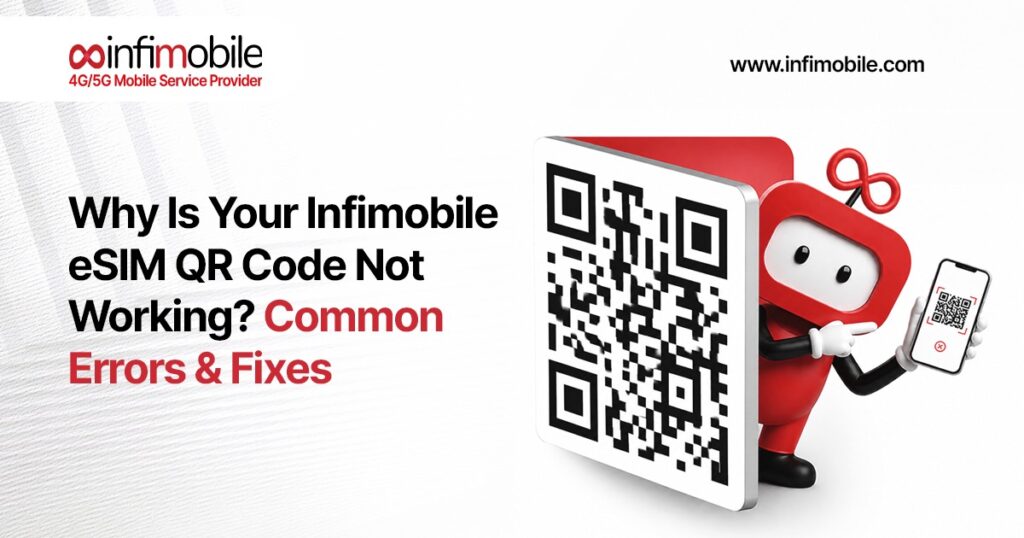
When you buy an eSIM plan from Infimobile, you don’t get a physical card in the mail; you get a small digital profile, delivered as a QR code by email and also viewable in your Infimobile account. Scanning that code through your phone’s eSIM setup screen tells your device where to download the profile from and hands over a one-time activation code that unlocks it. Once the profile installs, your phone registers on Infimobile’s network the same way it would with a physical SIM. For most people, the entire process takes somewhere between two and ten minutes, and eSIM customers are typically connected the same day they sign up.
Because the code is really a set of download instructions rather than the SIM itself, it only works under specific conditions: it has to be scanned by an eligible, unlocked device, it can generally only be used once, and your phone needs an active internet connection to complete the download in the first place. When any one of those conditions isn’t met, you’ll see an error instead of a confirmation screen.
Why eSIM Errors Feel More Common Than Physical SIM Issues
If you’ve used physical SIM cards before, eSIM activation can feel like it has more room to go wrong, and in a sense, it does. A physical SIM only needs to be inserted correctly; an eSIM needs a working internet connection, a compatible device, and a successful software handshake with Infimobile’s servers, all completed in one sitting. That’s more individual steps, which means more individual points where something small a shaky Wi-Fi signal, an outdated OS, a VPN running in the background can interrupt the process.
The upside is that once an eSIM activates, it tends to be more reliable day-to-day, and switching plans or devices later is far simpler than swapping physical cards. The errors covered in this guide aren’t a sign that eSIM or Infimobile’s activation process is flawed; they’re almost always tied to one specific, fixable condition on the device end.
Before You Troubleshoot: A Quick Checklist
Run through these basics first; they resolve the majority of Infimobile eSIM activation problems on their own, before you need to dig into a specific error:
- Confirm your phone is unlocked, VoLTE-enabled, and eSIM-compatible (Infimobile’s IMEI checker on its website confirms this in seconds)
- Connect to a strong Wi-Fi network rather than relying on weak or no cellular data.
- Turn off Airplane Mode and disconnect any active VPN.
- Update your phone’s operating system to the latest available version.
- Make sure this exact QR code hasn’t already been scanned on this device or another one.
If you’ve covered all of that and you’re still stuck, the errors below cover what’s likely happening.
Common Infimobile eSIM QR Code Errors and How to Fix Them
1. The QR Code Won’t Scan At All
This is usually a scanning-mechanics problem rather than an account problem. It typically happens when someone tries to point their phone’s camera at the same phone’s own screen (which doesn’t work), when the QR image is blurry or oddly cropped from a screenshot, or when the code is opened through a regular camera or photos app instead of through the dedicated eSIM setup screen.
Fix: Open the QR code from within Settings, using the “Add eSIM” or “Add Cellular Plan” flow rather than your general camera app. If you’re activating on the same phone that received the email, you can’t scan your own screen; instead, either open the email on a second device or computer and scan from there, print the code, or tap “Enter Details Manually” and type in the activation details found underneath the QR code in Infimobile’s confirmation email.
2. “Failed to Activate eSIM” or “Unable to Activate eSIM”
This message usually points to a connectivity or timing issue rather than anything wrong with the plan itself. Common triggers include a weak or unstable internet connection during download, an active VPN interfering with the connection to Infimobile’s activation servers, or your device already holding the maximum number of active eSIM profiles it can support.
Fix: Switch to a strong, private Wi-Fi network, disable any VPN, and restart your phone before trying again. If your device is at its eSIM profile limit, remove an old or unused profile first. Wait a minute or two between attempts rather than retrying repeatedly, since repeated rapid attempts can sometimes trigger the same failure again.
3. “This Code Has Already Been Used” or Invalid Activation Code
Infimobile eSIM QR codes are single-use and tied to one device’s eUICC chip once installed. This error shows up when a code has already completed activation on a device, when the same confirmation email is scanned twice, or when a code is forwarded and scanned on a second phone after already being used on the first.
Fix: If you’re confident the code was never successfully activated on any device, contact Infimobile support to confirm its status and, if needed, request a fresh QR code. Don’t try to reuse a code that already activated a line; moving an eSIM to a new or replacement device is a separate process, handled through your Infimobile account’s SIM replacement option or through support.
4. Device Not Compatible or Still Carrier-Locked
Infimobile requires an unlocked device that supports VoLTE and eSIM technology. A phone can technically have eSIM hardware and still fail activation if it’s locked to a previous carrier (common on devices still being paid off in installments) or if it’s a regional model that shipped without eSIM support. Some phones sold in certain countries, for example, use a physical-SIM-only or dual-physical-SIM configuration even though the same model sold elsewhere supports eSIM.
Fix: Before attempting activation, use Infimobile’s compatibility checker with your IMEI number (dial *#06# to find it) to confirm your specific device is supported. If it’s locked, contact your previous carrier to request an unlock; most carriers will do this once a device is paid off or a contract has ended.
5. No Internet Connection During Setup
Downloading an eSIM profile requires active data at the moment you scan the code. If your phone has no working SIM yet and no reliable Wi-Fi at the same time, the download will stall or fail partway through, sometimes without a clear error message.
Fix: Connect to a reliable Wi-Fi network before you start the activation steps, and avoid public or hotel Wi-Fi networks that require a login/captive portal, as these can silently block the download. If Wi-Fi isn’t available, a mobile hotspot from another connected device works as a temporary substitute.
6. Too Many eSIM Profiles or Low Device Storage
Most modern phones can store several eSIM profiles even though only one or two can be active at a time. Trying to add another when you’ve hit that internal limit or when your phone is critically low on storage can cause the installation to fail or hang indefinitely.
Fix: Go into your phone’s cellular or SIM settings and remove any old, unused, or expired eSIM profiles from previous carriers. Free up some storage space if your phone is nearly full, then retry the Infimobile activation.
7. Manual Entry Mistakes (SM-DP+ Address & Activation Code)
When scanning isn’t possible, Infimobile’s confirmation email also includes the activation details as text: an SM-DP+ server address and a long activation code that can be entered manually. These strings are long and easy to mistype, and a single wrong character will cause the activation to fail.
Fix: Copy and paste the details directly from the email rather than retyping them by hand. Check for accidental spaces at the start or end, and if the email formatting looks broken or the code appears cut off, ask Infimobile support to resend a clean copy rather than guessing at missing characters.
How to Correctly Activate Your Infimobile eSIM, Step by Step
On iPhone:
- Go to Settings → Cellular (or Mobile Data) → Add eSIM / Add Cellular Plan.
- Select Use QR Code
- Scan the code from Infimobile’s email displayed on a second device, a computer screen, or a printed copy, or tap Enter Details Manually if you’re on the same phone.
- Follow the on-screen prompts, label the line if asked, and wait for the “Cellular Plan Added” confirmation.
- Make sure the new line is set to use cellular data, then restart your phone if it doesn’t connect within a minute or two.
On Android:
- Go to Settings → Network & Internet (or Connections) → SIMs → Add eSIM / Download a SIM instead
- Scan the QR code, or choose the manual entry option and enter the activation code.
- Follow the prompts to download and install the profile.
- Set the new eSIM as your active mobile data line and restart the device if needed.
Both platforms follow the same basic logic, even though menu names vary slightly by phone brand and OS version. If you get through all these steps and the profile still won’t download, that’s a good sign it’s time to bring in Infimobile support directly.
When to Contact Infimobile Support
Reach out to Infimobile’s team if:
- You’ve worked through the checklist and the relevant error section above with no luck.
- The code says it’s already been used, but you’re certain it never successfully activated.
- The IMEI checker confirms your device is compatible, yet activation keeps failing.
- You never received the QR code email, or the file looks corrupted or unreadable.
Infimobile offers 24/7 support through live chat on its website, by email at support@infimobile.com, and through its online help center. Before reaching out, have your order number, device model, IMEI, and phone operating system version on hand; it lets support reissue a QR code or diagnose the problem much faster than starting from scratch.
Tips to Avoid eSIM Activation Problems Next Time
- Run Infimobile’s IMEI compatibility checker before purchasing, not after
- Keep the original confirmation email intact rather than relying on a screenshot or forward.
- Activate as soon as you’re ready to use the plan, rather than letting the code sit unused for an extended period.
- Make sure your phone’s OS is updated, and you’re on solid Wi-Fi before you start.
- Don’t remove your old SIM or eSIM until the new Infimobile line is confirmed active. Infimobile supports both eSIM and physical SIM, so you always have a fallback while you sort out activation.
Conclusion
Most “Infimobile eSIM QR code not working” problems come down to one of a handful of causes: a weak connection, a device that isn’t unlocked or compatible, a code that’s already been used, or a simple scanning mix-up, and nearly all of them take just a few minutes to fix once you know what to look for. Start with the quick checklist, match your error message to the right section above, and if nothing gets you across the finish line, Infimobile’s support team can issue a fresh code and get you connected without much extra hassle.
Frequently Asked Questions
Infimobile eSIM codes are single-use and get tied to one device once activation completes. This message usually means the code has already been installed successfully on a device, or the same email was scanned more than once. If you don’t believe it was ever activated, contact Infimobile support to check its status and request a new code if needed.
Not by pointing the camera at your own screen; a phone can’t scan a code displayed on itself. Open the confirmation email on a second device, a computer, or a printed copy instead, or use the “Enter Details Manually” option in your phone’s eSIM setup screen to type in the activation details directly.
For most compatible devices, the process takes roughly two to ten minutes from scanning the code to being connected, and eSIM customers are generally live the same day they activate. Delays are almost always tied to one of the errors covered above, not the plan itself.
Check compatibility first using Infimobile’s IMEI checker on its website you’ll find your IMEI by dialing *#06#. Infimobile requires an unlocked, VoLTE-enabled device that supports eSIM. If your phone is locked to a previous carrier, contact that carrier to request an unlock before trying again.
Yes. Infimobile supports both eSIM and physical SIM on its plans, and you can request a physical SIM swap through your Infimobile account or by contacting support if eSIM activation isn’t working out on your device.