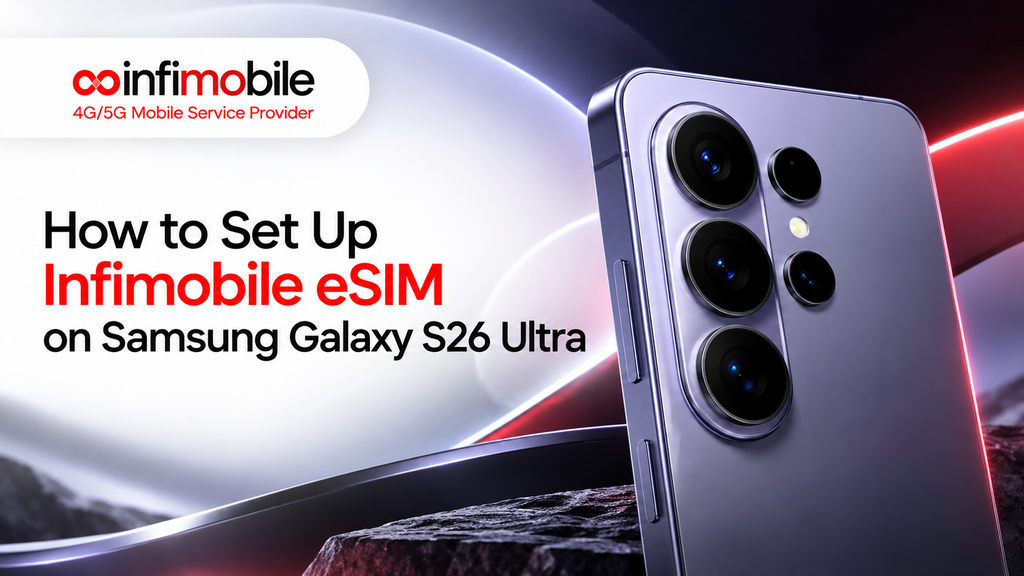
If you just picked up a Samsung Galaxy S26 Ultra and you’re switching to Infimobile, setting up your eSIM is one of the easiest parts of getting your new phone ready to use. There’s no physical SIM tray to fuss with, no tiny card to lose, and no waiting for a piece of plastic to arrive in the mail. Everything happens digitally, right from your phone’s settings.
That said, if you’ve never activated an eSIM before, the process can feel a little unfamiliar. This guide walks you through exactly how to set up your Infimobile eSIM on the Galaxy S26 Ultra, what to have ready before you start, and how to fix the most common hiccups people run into along the way.
What Is an eSIM, and Why Does It Matter on the Galaxy S26 Ultra?
An eSIM (embedded SIM) is a digital SIM card that’s built directly into your phone’s hardware. Instead of inserting a physical card, your carrier sends you a digital profile that gets loaded onto the phone remotely, usually through a QR code or an activation code entered manually.
The Galaxy S26 Ultra supports eSIM technology, and in the US, it’s set up to work with one physical Nano-SIM slot plus two eSIM profiles, though only two lines of total can be active at the same time. That flexibility is useful if you want to keep a second number active, use a work and personal line on the same device, or simply prefer not to deal with a physical SIM at all.
For Infimobile customers specifically, this means you can activate service on your Galaxy S26 Ultra without needing a SIM kit shipped to you. As long as your phone is eSIM-capable and unlocked, you can get connected the same day.
Is the Galaxy S26 Ultra Compatible with Infimobile eSIM?
Yes. The Galaxy S26 Ultra released in the US market supports eSIM, and it’s one of the more recent flagship phones with full digital SIM functionality. Before you start the setup process, though, there are two things worth confirming on your own device:
- Your phone is unlocked. If you bought the Galaxy S26 Ultra directly from Samsung or as an unlocked model, this typically isn’t an issue. If it comes from another carrier, you may need to request an unlock from that carrier before an Infimobile eSIM will work.
- Your phone is eSIM-enabled for the US market. US variants of the Galaxy S26 Ultra support eSIM, but region-specific models can vary. If you import your device from outside the US, double-check its SIM configuration before assuming eSIM will work.
If both of those check out, you’re ready to move forward with activation.
What You Need Before You Start
Getting your eSIM set up goes a lot faster if you have everything ready ahead of time. Here’s what to gather:
- Your Galaxy S26 Ultra, fully charged or at least above 20 percent battery.
- A stable Wi-Fi or mobile data connection, since your phone needs internet access to download the eSIM profile
- Your Infimobile activation code, which you’ll typically receive by email after purchasing a plan or eSIM kit
- Your phone’s IMEI number, which you can find by dialing *#06# or checking Settings > About Phone > Status
- Your ZIP code, since Infimobile asks for this during activation to confirm service availability in your area
Having these details on hand before you begin means you won’t have to stop halfway through the process to go looking for information.
How to Set Up Your Infimobile eSIM on the Galaxy S26 Ultra
There are generally two ways to get your Infimobile eSIM activated on the Galaxy S26 Ultra: scanning a QR code or entering an activation code manually. Which one you use depends on how you receive your eSIM details from Infimobile.
Method 1: Activating With a QR Code
This is the quickest method if you have access to your QR code on a second device, like a laptop or another phone, since you’ll need to scan it with your Galaxy S26 Ultra’s camera.
- On your Galaxy S26 Ultra, go to Settings.
- Tap Connections.
- Select the SIM Manager.
- Tap Add eSIM.
- Choose Scan QR code from carrier.
- Hold your phone’s camera up to the QR code provided by Infimobile until it’s recognized.
- Follow the on-screen prompts to confirm and complete the download of your eSIM profile.
- Once installed, label the new line (for example, “Infimobile”) so it’s easy to identify later.
The eSIM profile usually downloads within a minute or two, depending on your internet connection.
Method 2: Activating With a Manual Activation Code
If you don’t have a second screen handy displaying the QR code, or if Infimobile sends you a text-based activation code instead, you can enter it manually.
- Go to Settings > Connections > SIM Manager.
- Tap Add eSIM.
- Select Enter activation code manually.
- Type in the activation code exactly as provided, since these codes are case-sensitive and often include a mix of letters and numbers.
- Confirm the details and allow the phone to download and install the eSIM profile.
Once complete, your Galaxy S26 Ultra will show the new Infimobile line under SIM Manager, ready to be turned on for calls, texts, and data.
Switching Between eSIM and Physical SIM on the Galaxy S26 Ultra
One advantage of the Galaxy S26 Ultra’s dual SIM support is that you can run an eSIM and a physical Nano-SIM at the same time, or switch which one is active for calls, texts, and data.
To manage this:
- Go to Settings > Connections > SIM Manager.
- Under SIM cards, you’ll see both your physical SIM (if inserted) and your Infimobile eSIM listed.
- Tap on either line to set it as your preferred option for Calls, Text messages, or Mobile data.
- If you only want one line active at a time, you can toggle the other one off rather than removing it entirely.
This is particularly handy if you’re testing Infimobile alongside an existing line before fully switching over, or if you want to keep a secondary number active for work or travel purposes.
Common eSIM Setup Problems and How to Fix Them
Even with a straightforward process, a few things can go wrong. Here are the most common issues Galaxy S26 Ultra users run into and how to resolve them.
The QR code won’t scan. Make sure your camera lens is clean and that the QR code is displayed at a reasonable size and brightness on the other screen. If scanning still fails after a few attempts, switch to the manual activation code method instead.
The eSIM downloads but shows no signal. This usually means the eSIM profile installed correctly, but the line hasn’t been activated on the network yet. Double-check that you completed the activation step through the Infimobile app or website, not just the download step on your phone.
“Invalid activation code” error. Activation codes are case-sensitive and can expire after a certain period. If you’re copying and pasting the code, check for extra spaces. If the code was sent a while ago, contact Infimobile support to confirm it’s still valid or request a new one.
Phone doesn’t recognize the eSIM option. Confirm that your Galaxy S26 Ultra is a US model and that it’s genuinely unlocked. A device still locked to another carrier may block eSIM activation from a different provider.
Data works but calls or texts don’t. In SIM Manager, check that the Infimobile line is correctly set as your default for calls and messages, not just for data.
If none of these fixes work, reaching out to Infimobile customer support with your IMEI and activation code ready will usually get things sorted quickly.
eSIM vs. Physical SIM: Which Should You Choose?
If you’re deciding between an eSIM or a physical SIM for your Infimobile service on the Galaxy S26 Ultra, here’s how they generally compare:
eSIM advantages:
- No physical card to lose or damage
- Activation can often happen on the same day since there’s no shipping involved.
- Easier to run two lines at once without a dual physical SIM tray
- Simple to remove or deactivate directly from your phone’s settings
Physical SIM advantages:
- Easier to transfer between devices manually if you frequently switch phones
- Doesn’t rely on your phone supporting eSIM technology
- Some people find swapping a physical card more familiar than digital activation.
For most Galaxy S26 Ultra owners, eSIM is the more convenient option, especially since the phone fully supports it, and the setup process with Infimobile is quick once you have your details on hand.
Tips for a Smooth Infimobile eSIM Setup
A few small habits can make the whole process go more smoothly:
- Set up your eSIM while connected to Wi-Fi rather than relying on another carrier’s data, especially if your old SIM is still active during the transition.
- Don’t remove your old SIM card until your Infimobile eSIM is confirmed active and working.
- Restart your phone after activation if you don’t see a signal right away. This often resolves minor network registration delays.
- Keep your activation email or text with the QR code and activation code until you’re sure setup is complete, in case you need to retry the process.
- If you’re porting a phone number from another carrier, that process runs separately from eSIM activation, so make sure both steps are completed.
Frequently Asked Questions
Yes, the US version of the Galaxy S26 Ultra supports eSIM alongside a physical Nano-SIM slot, allowing you to use up to two lines at once.
You need some form of internet connection, either Wi-Fi or mobile data, to download the eSIM profile. Wi-Fi is generally the more reliable option during setup.
No, your phone needs to be unlocked before an eSIM from a different provider like Infimobile can be activated on it.
Restart your phone, confirm the eSIM line is set as active for calls and data in SIM Manager, and make sure activation was completed through the Infimobile app or website, not just downloaded to the device.
Yes, the phone supports having a physical SIM and an eSIM active simultaneously, and you can choose which one handles calls, texts, and data separately.
Final Thoughts
Setting up an Infimobile eSIM on the Galaxy S26 Ultra is a quick process once you know what to expect. Gather your activation code, IMEI number, and ZIP code ahead of time, choose whether to scan a QR code or enter your details manually, and finish activation through the Infimobile app or website. From there, your phone handles the rest.
The biggest advantage of going the eSIM route is convenience. There’s no card to wait for, no tray to open, and switching between lines or devices later on is far simpler than dealing with physical SIM swaps. If you run into any issues along the way, most problems come down to a few simple checks, like confirming your phone is unlocked or making sure activation was completed on both the device and account side.
Once everything is set up, you’ll have a working Infimobile line on your Galaxy S26 Ultra ready for calls, texts, and data, without ever having to touch a physical SIM card.