You’re in a basement office, a rural cabin, or just a corner of your apartment where the bars quietly disappear, and suddenly your calls keep dropping or won’t connect at all. If this sounds familiar, there’s a good chance your phone already has the fix built in, and you’ve just never turned it on. Wi-Fi Calling lets your phone route calls and texts over a Wi-Fi connection instead of relying on a cell tower, so a weak-signal spot no longer has to mean a missed call.
The setup takes less than a minute on both iPhone and Android, but the exact menu path depends on your device and manufacturer. Below, we’ll walk through the steps for both platforms, show you how to confirm it’s actually working, and cover what to do if it isn’t. We’ll also touch on why the network behind your SIM card matters here and why Infimobile’s flash sale plans are worth a look if you’re due for an upgrade.
What Is Wi-Fi Calling, and Why Does It Matter?
Normally, your phone connects to a nearby cell tower to make calls and send texts. Wi-Fi Calling gives it a second path: instead of searching for a cellular signal, it routes that same call or text through whatever Wi-Fi network you’re connected to. The call quality is often just as good, sometimes better, and it doesn’t use your cellular data allowance at all.
This matters most in three common situations. First, weak-signal spots: basements, elevators, rural areas, or buildings with thick concrete and metal framing where cellular reception struggles but home or office Wi-Fi is strong. Second, international travel, where Wi-Fi Calling can let you make and receive calls on your regular number over a hotel or café Wi-Fi network, often avoiding expensive roaming charges. Third, simple reliability: if your carrier’s tower coverage is inconsistent in your area, Wi-Fi Calling acts as a built-in backup so a bad signal doesn’t automatically mean a dropped call.
Most people never think to turn it on because it isn’t enabled by default on either platform, and it’s tucked a few menus deep in settings. Once it’s active, though, there’s nothing else to manage; your phone quietly switches between cellular and Wi-Fi in the background, and calls and texts go through exactly the way they always have.
Which Phones and Carriers Support Wi-Fi Calling
Wi-Fi Calling has been standard on most smartphones for years, but support still depends on a combination of your device, your operating system version, and your carrier plan. On iPhone, the feature works on iPhone 5c and later, running iOS 9 or newer. On Android, most phones released in the last several years support it, though the exact menu location varies by manufacturer, as we’ll cover below.
The bigger variable is usually the carrier side. Wi-Fi Calling has to be turned on at the network level before it will ever appear as an option on your phone, and not every plan includes it. This is especially common with older prepaid plans, certain MVNO (mobile virtual network operator) plans, and international carriers, some of which restrict the feature to postpaid customers or specific device models purchased directly through them. If you’ve confirmed your phone is compatible, but the setting simply isn’t there, your carrier, not your device, is almost always the reason.
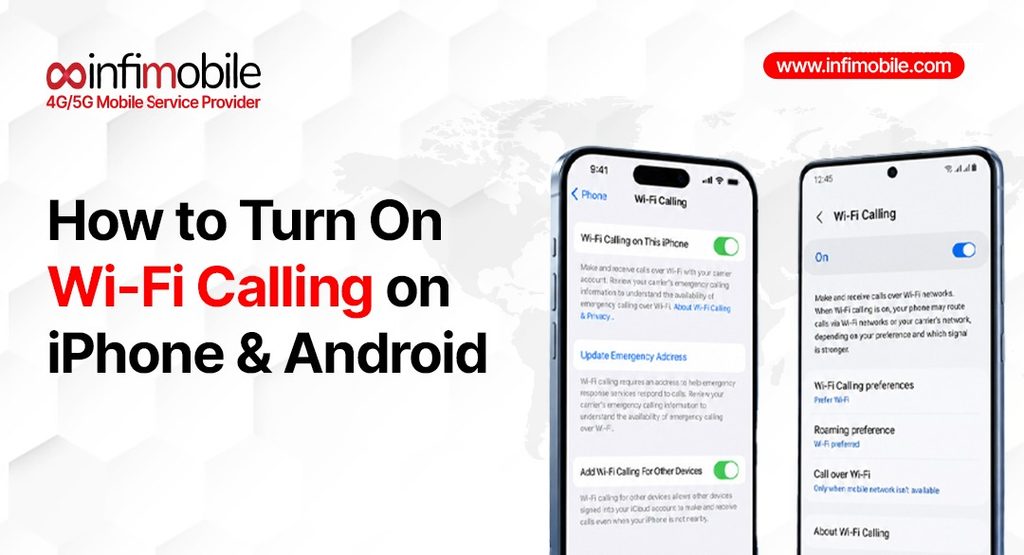
How to Turn On Wi-Fi Calling on iPhone
Wi-Fi Calling has been available on iPhone since iOS 8, and turning it on takes just a few taps.
- Open the Settings app.
- Tap Cellular (on some iPhone models and carriers, this appears as Phone instead).
- If you have Dual SIM, choose the line you want to set up.
- Tap Wi-Fi Calling.
- Toggle on Wi-Fi Calling on This iPhone.
- When prompted, tap Enable to confirm, and enter or confirm your address for emergency services. This address is what 911 dispatchers use to locate you if you ever place an emergency call over Wi-Fi.
Once it’s on, you’ll see your carrier’s name followed by “Wi-Fi” in the status bar whenever you check Control Center, confirming that your next call will route over your Wi-Fi connection.
If you also use an iPad, Mac, or Apple Watch, you can extend Wi-Fi Calling to those devices. From the same Wi-Fi Calling screen on your iPhone, turn on Add Wi-Fi Calling for Other Devices, then go to Calls on Other Devices and toggle on the devices you want included. Just make sure each device is signed in with the same Apple Account and running current software.
How to Turn On Wi-Fi Calling on Android
Android’s Wi-Fi Calling setting lives in a slightly different place depending on your phone’s manufacturer, since each brand customizes its settings menu. Here’s where to look based on the most common devices.
On Google Pixel and Stock Android Phones
- Open Settings.
- Tap Network & internet.
- Tap SIMs, then select your carrier’s SIM.
- Toggle on Wi-Fi Calling.
If you use two SIM cards, you’ll need to repeat this for each one, since the setting applies per line rather than to the whole device.
On Samsung Galaxy Phones
- Open Settings.
- Tap Connections.
- Tap Wi-Fi Calling.
- Toggle the switch on. If a pop-up asks for your emergency address, enter it and tap Save.
Many Samsung phones also let you add a Wi-Fi Calling tile to your Quick Settings panel, so you can toggle it from the pull-down menu without opening the full Settings app.
On Other Android Phones
Most other manufacturers follow a similar structure to stock Android. If the steps above don’t match what you see, open Settings, tap the search icon, and type “Wi-Fi Calling.” This will usually take you straight to the right toggle regardless of your phone’s brand or Android version.
If You Can’t Find the Setting in Your Phone App
Some Android phones surface Wi-Fi Calling through the Phone app instead of the system Settings. If that’s the case for your device:
- Open the Phone app.
- Tap the three-dot menu in the upper-right corner.
- Tap Settings, then Calls.
- Tap Wi-Fi Calling and turn on Use Wi-Fi Calling.
A small number of carriers require you to enable Wi-Fi Calling through their own branded app rather than your phone’s built-in settings, so if none of the above locations show the option, check whether your carrier has a companion app with the setting inside it.
How to Confirm Wi-Fi Calling Is Working
After turning it on, look for a small “Wi-Fi” label next to your carrier name in the status bar (iPhone) or on the call screen and recent calls list (Android). This confirms the feature is active and that your next call will use it automatically whenever your Wi-Fi connection is stronger than your cellular signal. You don’t need to do anything differently to place the call; it dials exactly like a normal call, and your phone decides in the background which connection to use.
Wi-Fi Calling vs. VoLTE: What’s the Difference?
It’s easy to confuse Wi-Fi Calling with VoLTE (Voice over LTE), since both are modern alternatives to old-fashioned cellular voice calls, and phones often list them near each other in settings. The difference comes down to which network carries the call. VoLTE sends your call over your carrier’s 4G LTE data network instead of the older 3G voice network, which is why it typically delivers clearer audio and lets you browse the internet while on a call. Wi-Fi Calling, by contrast, sends the call over whatever Wi-Fi network you’re connected to, completely bypassing your cellular network.
In practice, most modern phones use VoLTE automatically whenever you have a decent LTE or 5G signal, and fall back to Wi-Fi Calling only when cellular signal is too weak or unavailable, but Wi-Fi is present. You don’t need to choose one over the other; both can be enabled at the same time, and your phone will pick whichever connection gives you the more reliable call at that moment.
Troubleshooting Wi-Fi Calling Issues
If the toggle won’t turn on, or calls still aren’t routing over Wi-Fi, work through these steps:
- Confirm your carrier supports it. Not every carrier offers Wi-Fi Calling, and it isn’t available in every region. Check your carrier’s website or support line if you’re unsure.
- Update your software. Both your phone’s operating system and carrier settings need to be current for the feature to work correctly.
- Check your Wi-Fi connection. Not all Wi-Fi networks support Wi-Fi Calling well, particularly ones with weak signal or heavy restrictions, like some public or hotel networks.
- Restart your phone. This clears out minor glitches that can prevent the toggle from activating.
- Toggle it off and back on. If it’s already enabled but not working, turning it off, waiting a moment, and re-enabling it often resolves the issue.
- Re-enter your emergency address. An incomplete or unconfirmed address can sometimes block the feature from fully activating.
Why Your Carrier Still Matters for Wi-Fi Calling
Wi-Fi Calling is a phone-level feature, but it only works if your carrier supports it on your specific plan and SIM. Some budget or legacy plans quietly exclude it, and some carriers restrict it to certain device models or phones purchased directly through them, even if the hardware itself is fully capable. If you’ve followed every setup step above and the toggle still won’t activate, the plan behind your SIM card, not your phone, is usually the reason.
This is worth checking before you assume your phone is broken or outdated. A capable, unlocked phone can be completely blocked from using Wi-Fi Calling simply because the carrier plan attached to it doesn’t include the feature.
The upside is that fixing this doesn’t require a new phone at all. Most people can switch to a different prepaid plan while keeping their existing device and even their current phone number, since number porting is a standard part of activating new service. If your current carrier has left you without a working Wi-Fi Calling option, moving your SIM to a plan that supports it properly is usually a far simpler fix than replacing hardware that was never the problem in the first place.
Infimobile Supports Wi-Fi Calling and Right Now, It’s on Flash Sale
Infimobile’s prepaid plans include Wi-Fi Calling and Wi-Fi Texting as a standard feature, not an add-on, so if weak signal spots have been a recurring headache, switching to a plan that supports it properly can solve the problem for good. Combined with nationwide 4G/5G coverage, bring-your-own-device compatibility, and no long-term contracts, Infimobile is built for people who want dependable connectivity without overpaying for it.
Right now, that value is even harder to pass up. For a limited time, Infimobile is running a flash sale on two of its most popular annual plans:
| 10GB Annual Plan | 10GB high-speed data/month | 12 months | $75 upfront | ~$6.25/month |
| 20GB Annual Plan | 20GB high-speed data/month | 12 months | $120 upfront | ~$10/month |
Both flash sale plans include unlimited nationwide talk and text, Wi-Fi Calling and Wi-Fi Texting, and access to Infimobile’s 4G/5G network. After your monthly high-speed data is used, speeds are reduced rather than cut off, so you stay connected until your next cycle resets. Activation is fully online with a 3-in-1 SIM kit or eSIM option, so you can be set up the same day you sign up.
This is a limited-time offer for new activations, and flash sale pricing like this doesn’t stay up indefinitely. If you’ve been meaning to switch to a more reliable, Wi-Fi-Calling-friendly carrier, this is the moment to lock in a full year of coverage at a fraction of the usual cost. Terms and eligibility apply, and full details are available on Infimobile’s website.
Quick Tips for Getting the Most Out of Wi-Fi Calling
- Connect to a stable, private Wi-Fi network when possible; weak or congested public networks can affect call quality.
- Keep your device software updated, since both your OS and carrier settings periodically improve Wi-Fi Calling reliability.
- Update your emergency address whenever you move, so 911 dispatchers have accurate information if it’s ever needed.
- Set your calling preference if your phone allows it; most devices let you choose whether Wi-Fi or cellular is prioritized when both are available.
- Test it once after setup by placing a short call while connected to Wi-Fi, just to confirm everything is working before you actually need it.
- Enable it on every SIM if your phone supports dual SIM, since Wi-Fi Calling settings are usually applied per line rather than device-wide.
- Note: It doesn’t require a strong Wi-Fi network for data; just a stable one. Even a modest home connection is typically enough for clear call quality.
Frequently Asked Questions
No. Wi-Fi Calling routes calls and texts through your Wi-Fi network instead of your cellular data connection, so it doesn’t count against your mobile data allowance. It may still count toward your plan’s talk and text minutes, depending on your carrier, though most plans, including Infimobile’s, bundle unlimited talk and text regardless of which connection carries the call.
Yes, in most cases. As long as you’re connected to a Wi-Fi network, you can typically make and receive calls on your regular number without international roaming charges, though it’s worth confirming with your specific carrier before you travel, since policies vary.
This usually means your carrier plan doesn’t support the feature, your software needs an update, or you haven’t yet entered an emergency address. Confirming carrier support is the first thing to check, since the feature can’t be enabled at all if your plan doesn’t include it, even on a phone model that’s otherwise fully compatible. Updating your device’s software and restarting it are the next steps worth trying before assuming the plan is at fault.
Generally, no, Wi-Fi Calling doesn’t use more battery than a standard cellular call. In fact, in areas with very weak cellular signal, it can sometimes save battery, since your phone isn’t working as hard to search for a distant tower.
Yes. Wi-Fi Calling and Wi-Fi Texting are included as standard features across Infimobile’s prepaid plans, including the current flash sale plans, so you won’t need to pay extra or hunt for a carrier setting that isn’t there.
Final Thoughts
Wi-Fi Calling is one of those features that quietly solves a problem most people just learn to live with: dropped calls in weak-signal areas. Turning it on takes only a couple of minutes on either iPhone or Android, and once it’s set up, your phone handles the switching automatically from then on.
If you’ve gone through the steps above and Wi-Fi Calling still won’t activate, it may be time to look at the plan behind your SIM rather than the phone itself. Infimobile’s plans support Wi-Fi Calling by default, come with nationwide 4G/5G coverage, and right now, the 10GB and 20GB annual plans are available at flash sale pricing for new activations. Visit Infimobile online to check compatibility and lock in your plan before the sale ends.