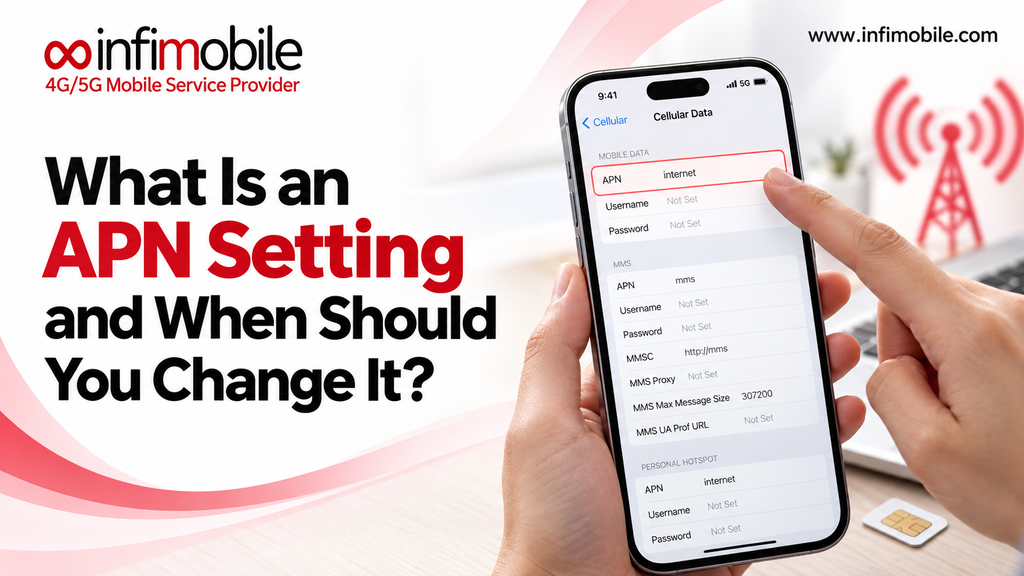
An APN setting is a small group of details that tells your phone how to connect to your carrier’s mobile data network. Most people never see it because the phone loads the right APN setting automatically when you insert a SIM card or activate an eSIM. You usually only meet it when something breaks, such as mobile data not working, picture messages failing to send, or a new phone that refuses to get online.
This guide explains what an APN setting is, what each field means, and when it makes sense to change it (and when it does not). You will also find step-by-step instructions for Android and iPhone, a quick troubleshooting table, and answers to common questions.
What Is an APN Setting?
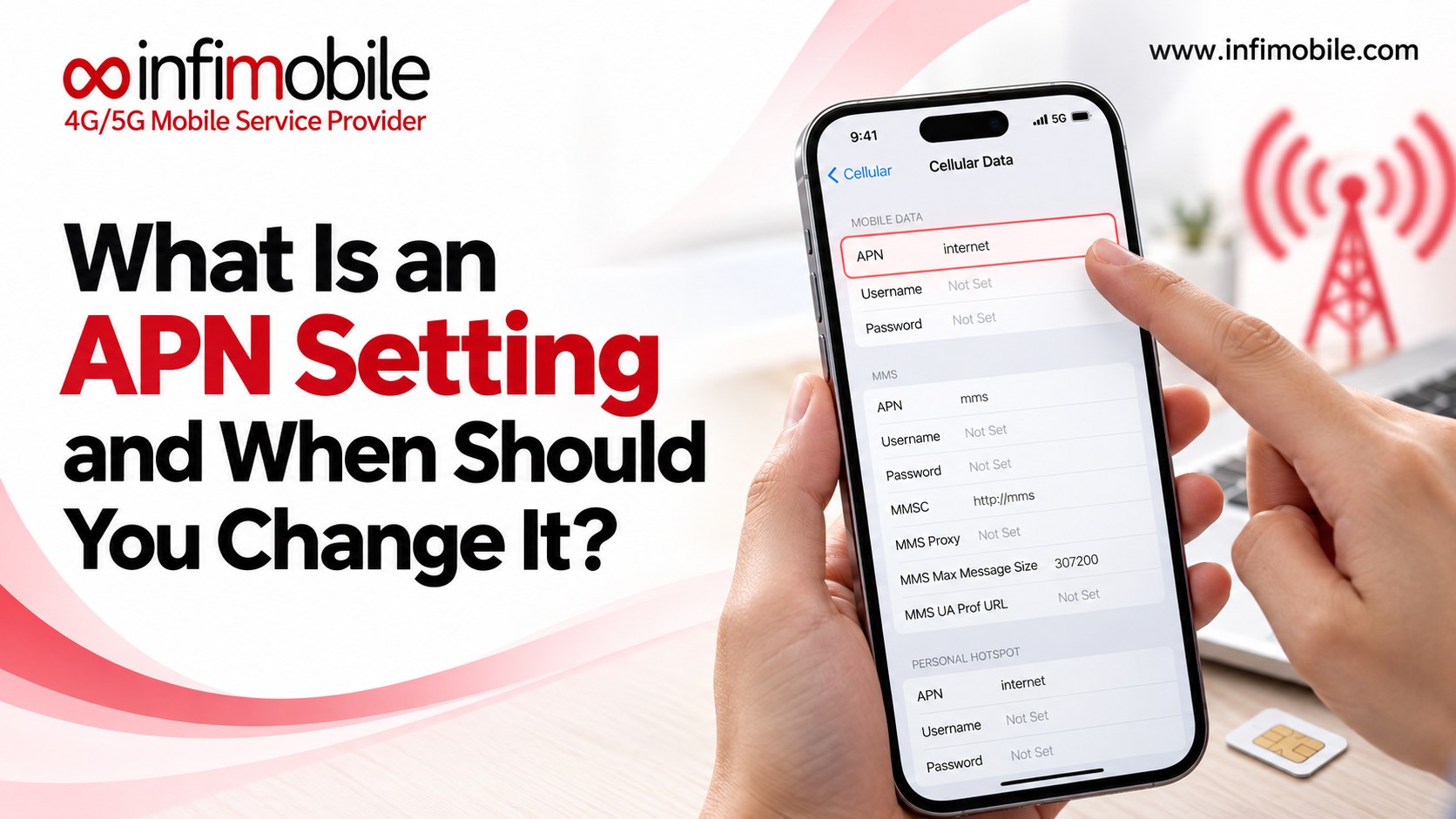
APN stands for Access Point Name. Think of it as the address of the gateway between your phone and the internet. When your phone wants to load a web page, stream a video, or send a picture message, it asks your carrier’s network which gateway to use. The APN setting supplies that answer.
Two points are worth knowing from the start:
- APN settings only affect cellular data. They have nothing to do with your home Wi-Fi, so if Wi-Fi works and mobile data does not, the APN is one possible cause.
- APN settings are not the same as your plan. Your plan controls how much data you get and how long it lasts. The APN controls whether your phone can reach the network in the first place.
What Each APN Field Means
When you open the APN menu, you may see a long list of fields. Here is what the most common ones do.
| Field | What it does | Typical entry |
| Name | A label so you can recognize the profile | Anything you like |
| APN | The gateway name your phone connects to | Must match your carrier’s value exactly |
| Proxy and Port | Used by some networks for web or MMS traffic | Often blank |
| Username and Password | Login details some networks require | Usually blank |
| MMSC | The server address for picture messages | Provided by your carrier |
| MMS Proxy and MMS Port | Extra routing details for picture messages | Provided by your carrier, if needed |
| Authentication Type | How the phone proves its identity | Often None or as instructed |
| APN Type | What the profile is used for, such as internet or MMS | Often default, mms |
You do not need to memorize any of this. Every field has to match what your carrier expects, and a single wrong character in the APN field can block your connection.
How APN Settings Work on Your Phone
In most cases, the process is invisible. When you insert a SIM or install an eSIM profile, your phone identifies the carrier and loads a matching APN setting from a built-in list or from a profile supplied by the carrier. That is why a new phone usually connects within a minute or two without any manual work.
Why Prepaid and MVNO Users Should Pay Attention
Many prepaid providers are mobile virtual network operators, or MVNOs. An MVNO does not build its own towers. It offers service over a larger carrier’s network. Because of this, the APN setting you need depends on how your service is set up on that host network, and not only on the brand name printed on your SIM.
This matters because phones sold by one carrier may have a built-in list that does not include a smaller provider.
When Should You Change Your APN Setting?
Changing your APN setting is a fix, not routine maintenance. If your phone gets online and sends messages normally, leave it alone. These are the situations where a change is worth trying.
Mobile Data Is Not Working on a New SIM or eSIM.
You activate a new line, the phone shows signal bars, but web pages will not load on cellular data. If Wi-Fi works and your plan is active, a missing or incorrect APN is a common cause.
Picture Messages (MMS) Will Not Send or Download
Text messages go through, but photos and group messages fail. MMS depends on separate fields such as the MMSC, so a data connection can look healthy while picture messaging stays broken.
You Switched Carriers and the Old Settings Stayed
When you move from one provider to another, an old custom APN can remain on the phone. The phone may keep trying the previous carrier’s gateway instead of the new one.
You Are Using an Unlocked or Secondhand Phone
An unlocked phone bought from another carrier, another country, or another person may not recognize your provider. It may also hold manual settings that someone else entered.
Settings Were Wiped or Corrupted
A software update, a network reset, or a factory reset can clear or scramble APN entries. If data stopped working right after one of these, the APN is worth checking.
When You Should Not Change It
Editing the APN is tempting because it feels like a technical lever, but it is not a cure-all. Leave it alone if the real issue is one of these:
- Weak signal or poor coverage. A perfect APN cannot create signal where there is none.
- Slow speeds during busy hours. Network congestion is not an APN problem.
- A used-up data allowance. If your high-speed data has run out, new settings will not bring it back.
- An inactive or expired plan. Check your account first.
- Airplane mode or cellular data switched off. These are simple toggles and easy to miss.
Online posts sometimes claim a special APN gives faster speeds or free data. Treat these with caution. The APN decides how your phone connects, not how fast the network performs, and a wrong entry is far more likely to cut you off than to help.
Quick Checks Before You Touch APN Settings
Run through this short list first. It solves many connection problems without any manual configuration.
- Turn airplane mode on, wait ten seconds, then turn it off. This forces the phone to reconnect to the network.
- Restart the phone. A fresh start often reloads carrier settings.
- Confirm cellular data is on and that the right line is selected if your phone supports two lines.
- Check that your plan is active and that you have data remaining.
- Install any available system or carrier updates. Updates can refresh built-in APN information.
- Reseat the SIM card, or reinstall the eSIM profile if your carrier allows it.
- Make sure your phone is unlocked and compatible with the network you are using.
If you still have no mobile data after all seven, it is time to look at the APN.
How to Change APN Settings on Android
Menu names differ a little between brands and Android versions, but the path is similar on most phones.
- Open Settings.
- Tap Network & internet (or Connections on some Samsung phones), then SIMs or Mobile networks.
- Select the SIM or eSIM line you want to edit.
- Tap Access point names.
- Look at the existing entry first and write down its values before changing anything.
- Tap the + or Add button to create a new APN, or tap an existing one to edit it.
- Enter the values supplied by your carrier, field by field.
- Tap the three-dot menu and choose Save.
- Back on the APN list, select the new profile so the radio button is filled in.
- Restart your phone and test mobile data and picture messaging.
If something goes wrong, the three-dot menu also has a Reset to default option that restores the original list.
How to Change APN Settings on iPhone
iPhone handles this differently. Apple and carriers manage many settings through carrier profiles, so the APN menu is not always visible. Here is where to look.
- Open Settings.
- Tap Cellular (or Mobile Data).
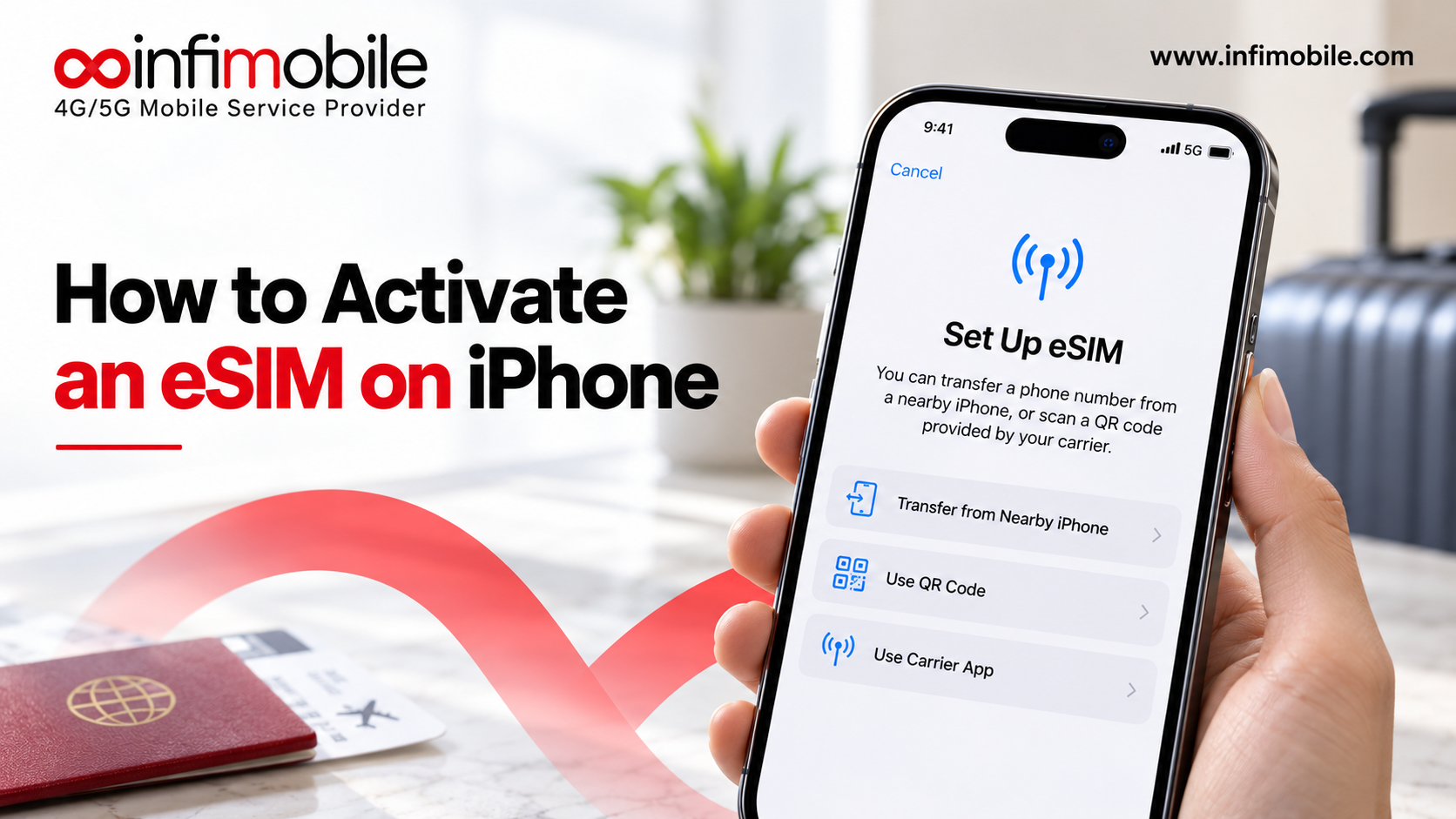
- Tap Cellular Data Network (or Mobile Data Network). On a phone with eSIM, you may need to tap the specific plan first.
- Enter the APN, and fill in the MMS section if your carrier gave you MMS details.
- Leave any field blank if your carrier did not provide a value for it.
- Close Settings and restart the iPhone.
If you cannot find this menu, that is normal for some carriers. The settings are likely controlled by the carrier profile, so ask your provider’s support team.
As a last resort, you can go to Settings, General, Transfer or Reset iPhone, Reset, Reset Network Settings. This clears saved Wi-Fi passwords and Bluetooth pairings along with cellular settings, so use it only after the simpler fixes.
Symptoms and What to Try
| Symptom | Likely cause | What to try |
| Wi-Fi works, mobile data does not | Missing or wrong APN | Check the APN against your carrier’s values |
| Texts send, pictures fail | MMS fields wrong or empty | Review MMSC, MMS proxy, and MMS port |
| Data worked, then stopped after an update | Settings reset or overwritten | Re-enter or reset APN, then restart |
| New phone shows signal but no internet | APN not loaded for this carrier | Add the APN manually or contact support |
| Data works on one line but not the other | Wrong SIM line edited | Check which line the APN belongs to |
Common APN Mistakes to Avoid
Most failed attempts come down to small errors. Keep an eye out for these:
- Typos and extra spaces. An APN can be case-sensitive on some devices, and a stray space at the end can break it.
- Mixing values from different carriers. Do not combine an APN from one source with an MMSC from another.
- Copying settings from random websites. Lists online can be outdated or wrong for your specific network.
- Forgetting to select the new profile. Saving an APN does not always activate it.
- Editing the wrong line on a dual SIM phone. Make sure you are changing the SIM that actually has the problem.
APN Settings and Infimobile
Infimobile is a digital-only prepaid wireless provider, with eSIM support and no contracts. The network you use is selected at signup, and the correct connection details follow from that setup. With a compatible, unlocked phone, settings normally configure themselves once your SIM or eSIM is active, so most customers never touch the APN menu.
If mobile data or picture messaging does not work after activation, start with the quick checks above, then reach out to Infimobile support for the exact APN values that apply to your phone and network. Using the values from your provider directly is safer than relying on a third-party list.
A Plan Worth Considering: The Infimobile 12GB Plan
If you are setting up a new line, the Infimobile 12GB plan is a practical option:
- Price: $90 for 12 months.
- Data: 12GB of high-speed data.
- Free hotspot: 5GB of hotspot data included at no extra cost, on the premium network.
The included hotspot is useful because hotspot also depends on a working mobile data connection. If you share your connection with a laptop or tablet and it fails, the same APN checks in this guide apply. Confirm that your phone is unlocked and compatible before you switch. You can see current pricing and offers on the Infimobile plans page.
Frequently Asked Questions
No. An APN setting only controls how your phone connects to the cellular network. Your contacts, photos, and apps are stored separately and are not affected. The one thing a reset can remove is any custom APN profiles you created.
Your charges come from your plan and account, not from the APN stored on your phone. A wrong APN usually causes the opposite problem: no mobile data, or failed picture messages. If you notice an unexpected charge, check your account and plan details rather than your phone settings.
On many iPhones, the APN menu is hidden or limited because the carrier’s profile controls the settings. If you do not see Cellular Data Network under your cellular options, that is normal for some plans. Try restarting and updating the phone, and contact your provider if mobile data still fails.
Usually not. A new phone typically loads the right settings automatically once your SIM or eSIM is active. The exceptions are unlocked phones from other regions, older devices, and secondhand phones that still carry someone else’s custom settings. If data works, leave the APN as it is.
It is risky. Online lists can be outdated, incomplete, or written for a different network, and a wrong entry can break your connection. The safest source is your own carrier. Ask your provider for the exact values and enter them carefully, field by field.
Final Thoughts
An APN setting is the gateway your phone uses to reach your carrier’s data network. It works quietly in the background, and in most cases you never need to think about it. When mobile data stops working on a new SIM, picture messages fail, or a secondhand phone will not connect, the APN setting is one of the first places worth checking.
Start with the simple steps: toggle airplane mode, restart, confirm your plan is active, and update the phone. If those do not work, check the APN against your carrier’s values, enter them carefully, and test one change at a time.
Ready to find a prepaid plan that fits your needs? Explore current options on the Infimobile plans page.