You walk into your basement, a thick-walled office, or a rural rental, and your phone drops from three bars to none. Your Wi-Fi network works fine, but your call keeps cutting out. This is exactly the situation Wi-Fi calling was built for.
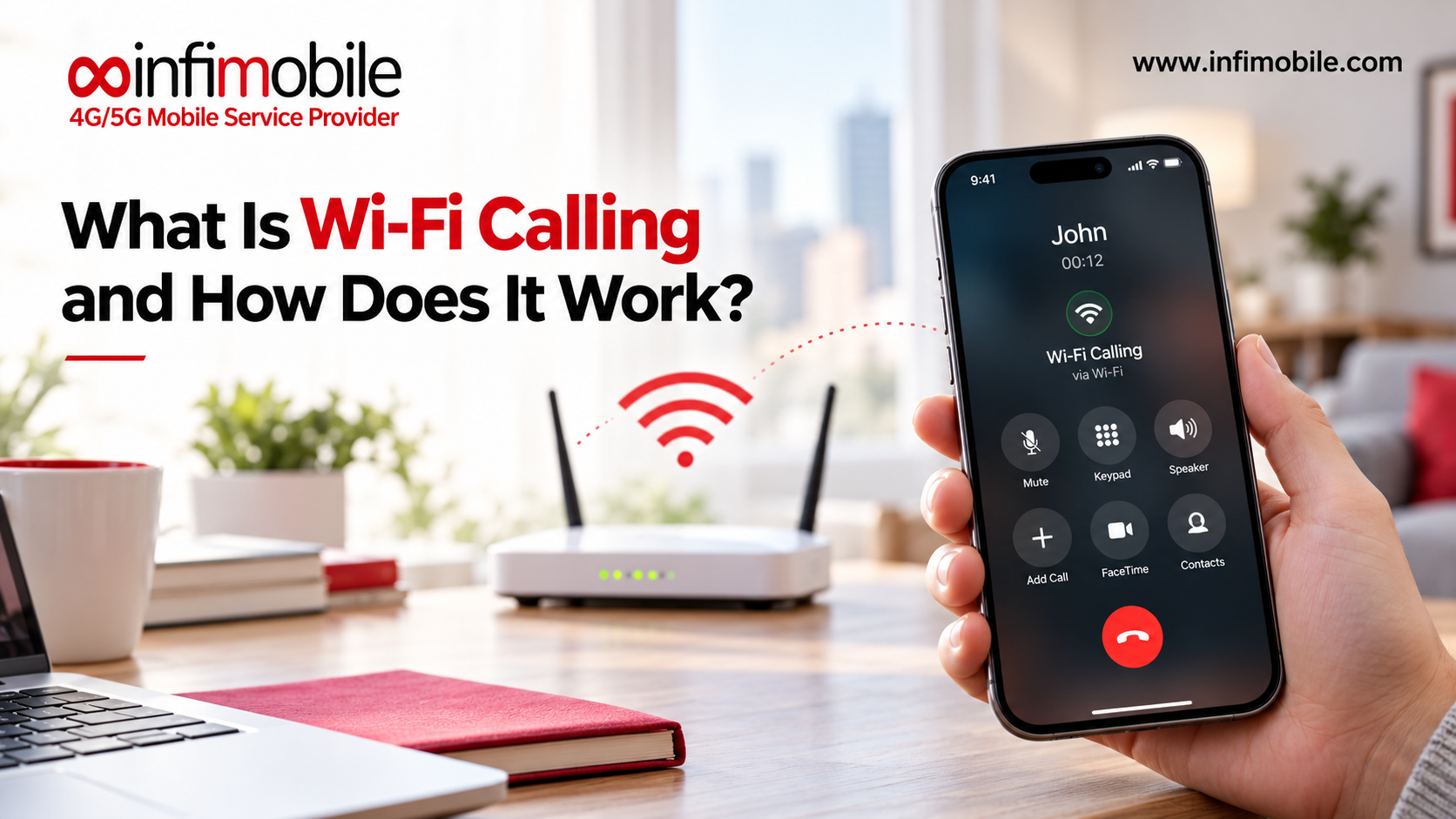
So, what is Wi-Fi calling? It lets your phone make and receive regular calls and texts over a Wi-Fi network instead of relying on a nearby cell tower. You still use your normal phone number, dialer, and contacts. The only thing that changes is the path your voice takes to reach the other person.
This guide explains how Wi-Fi calling works, what you need to use it, how to turn it on, where it falls short, and what to check when it doesn’t work. If you are choosing a prepaid wireless plan, it also covers what to confirm about Wi-Fi calling support before you sign up.
What Is Wi-Fi Calling?
Wi-Fi calling, sometimes called VoWiFi (Voice over Wi-Fi), is a built-in phone feature that sends your calls and text messages over the internet through a Wi-Fi connection. Your carrier still handles the call. It just reaches your phone through a different door.
Here is the simplest way to think about it. A traditional call travels from your phone to a cell tower, then through your carrier’s network to the person you are calling. With Wi-Fi calling on, that first leg goes from your phone to your Wi-Fi router, across your home or office internet connection, and then into your carrier’s network.
A few things stay the same:
- You use your regular phone number.
- You open the same Phone app you always use.
- Your contacts, call history, and voicemail work as usual.
- The person you call does not need any special app or setup.
That last point is important. Wi-Fi calling is not an app like WhatsApp, FaceTime, or Google Meet. Both people on those apps need the same service installed. With Wi-Fi calling, you can dial any phone number, and it rings like any other call.
How Does Wi-Fi Calling Work?
Understanding the basics makes it easier to fix problems and set realistic expectations. Here is what happens behind the scenes, in plain language.
Your Phone Connects Through a Secure Tunnel
When Wi-Fi calling is on and your phone detects a usable Wi-Fi network, it registers with your carrier over the internet. Your phone creates an encrypted connection, often called a tunnel, to your carrier’s network. Your call data travels through that tunnel as it crosses your router and the public internet.
This means someone else on the same coffee shop Wi-Fi cannot simply listen in on your call. The encryption protects the traffic between your phone and your carrier.
Your Carrier Treats It as a Normal Call
Once the connection is made, your carrier’s system treats the call much like any other. It links you to the person you are calling, applies your plan’s rules, and delivers texts and voicemail to your number. From the other person’s side, nothing looks different.
Your Phone Chooses Between Wi-Fi and Cellular
Most modern phones decide which connection to use based on signal quality and your settings. If your cellular signal is strong, your phone may stay on the cell network. If cellular is weak and Wi-Fi is available, it can switch to Wi-Fi calling. Many phones also let you pick a preference, such as “Wi-Fi preferred” or “Cellular preferred.”
Calls Can Hand Off Between Networks
If you start a call on Wi-Fi and walk outside, many phones and carriers can pass the call over to the cellular network without dropping it. The same can happen in reverse. This handoff depends on your device, your carrier, and the strength of each connection, so it is not guaranteed in every situation. When it works, you may not notice anything beyond a quick change in the status bar.
Wi-Fi Calling vs. Calling Apps
People often mix up Wi-Fi calling with apps that also use Wi-Fi. They are different tools, and knowing the difference helps you choose the right one.
| Feature | Wi-Fi Calling | Calling Apps (WhatsApp, FaceTime, etc.) |
| Uses your phone number | Yes | Usually tied to an account or the app |
| Works with any phone number | Yes | Only with people on the same app |
| Needs a separate app | No | Yes |
| Built into the Phone app | Yes | No |
| Carrier support required | Yes | No |
| Texting over Wi-Fi | Yes, SMS and MMS in many cases | Within the app only |
Calling apps are useful, but they only work if the other person has the same app. Wi-Fi calling works with any phone number, including landlines, businesses, and relatives who have never installed anything.
Why Use Wi-Fi Calling? Key Benefits
Better Coverage Where Cell Signal Is Weak
This is the biggest reason people turn it on. Concrete buildings, basements, elevators, parking garages, hospitals, and some rural homes often have poor cellular reception. If the Wi-Fi in that space is solid, Wi-Fi calling can make calls clearer and more reliable.
No Extra App or Account
Because it lives inside your phone’s regular calling system, there is nothing to download. You turn it on once and keep using your phone normally.
Calls and Texts Still Reach Your Number
Your phone number stays the same, so friends, family, and coworkers can reach you the usual way. You also keep your regular voicemail.
Often Helpful When Traveling
If you are outside the U.S. and connected to Wi-Fi, calling may let you reach people back home without relying on a local cellular connection. However, how calls are billed while abroad depends on your plan and carrier, so check the rules before you rely on it. Do not assume international use is free or included. [VERIFY Infimobile’s policy]
Can Reduce Dropped Calls at Home
If your home sits in a weak spot for your carrier, Wi-Fi calling gives you a second path for calls. For remote workers who take frequent calls from a home office, that can make a real difference.
Limitations and Things to Know
Wi-Fi calling is useful, but it is not magic. Here are the common limitations.
It Depends on Your Internet Quality
A slow, unstable, or congested Wi-Fi connection can cause choppy audio or dropped calls. If other people in your home are streaming video or downloading large files, call quality may suffer. A router placed closer to your phone, or a less crowded network, usually helps.
Your Phone and Carrier Must Support It
Not every phone or plan supports Wi-Fi calling. Most recent smartphones do, but older devices may not. Carrier support also varies, and some budget or prepaid providers have limits on which devices qualify.
Emergency Calls Work Differently
When you dial 911 over Wi-Fi, your location is not determined by cell towers. Instead, it relies on the address you register with your carrier. This is why many phones ask you to confirm an emergency address when you first enable the feature.
If you move, travel, or use a different Wi-Fi network in a new place, update that address when prompted. An out-of-date address can slow down emergency help. If you are ever in a situation where cellular service is available and reliable, it may be the better choice for an emergency call.
Some Public Wi-Fi Networks Can Block It
Hotel, airport, and café networks sometimes use login pages or restrictions that interfere with Wi-Fi calling. Corporate networks can also block the type of connection it needs. If calling will not connect on a particular network, that network is often the cause.
Rules Can Differ for International and Special Numbers
Calls to international numbers, premium numbers, or certain short codes may follow different rules than regular domestic calls. Check your plan’s terms if you plan to call outside the U.S. frequently.
What You Need to Use Wi-Fi Calling
Before you try it, confirm you have these basics:
- A compatible phone. Most recent iPhone and Android models support it.
- A carrier and plan that support it. Your provider must offer the feature on your line.
- An active line. Your SIM or eSIM needs to be activated on your plan.
- A working Wi-Fi network. A stable connection with decent speeds matters more than a fast one.
- An emergency address. You will usually be asked to enter one during setup.
- An up-to-date operating system. Software updates often include calling improvements and carrier settings.
How to Turn On Wi-Fi Calling
Menu names vary a little by phone model and software version, but the steps are similar.
On an iPhone
- Open Settings.
- Tap Phone.
- Tap Wi-Fi Calling.
- Turn on Wi-Fi Calling on This iPhone.
- Confirm or enter your emergency address if prompted.
On an Android Phone
- Open Settings.
- Look for Network & internet, Connections, or Calls, depending on your phone.
- Find Wi-Fi calling.
- Switch it on.
- Enter your emergency address if asked.
If you cannot find the option, use the search bar in Settings and type “Wi-Fi calling.” If it does not appear at all, your phone, software version, or plan may not support it.
How to Tell It Is Working
After enabling the feature and connecting to Wi-Fi, look at the status bar near the top of your screen. Many phones show a label such as “Wi-Fi” next to the carrier name, or a small Wi-Fi calling icon. That tells you your calls will go over Wi-Fi.
Troubleshooting Common Wi-Fi Calling Problems
If something is not working, try these fixes in order.
The Option Is Missing
Update your phone’s software and restart it. Then check that your carrier supports Wi-Fi calling on your line and your device. Some phones also need a carrier settings update to reveal the option.
Calls Will Not Connect Over Wi-Fi
Turn Wi-Fi calling off and back on. Then toggle airplane mode on and off. If the problem continues, try another Wi-Fi network to see whether your current one is blocking the connection.
Call Quality Is Poor
Move closer to the router, pause large downloads, and avoid crowded networks. If you can, switch to the 5 GHz band on your router, which often handles calls with less interference at close range.
The Phone Keeps Switching Back to Cellular
Check the Wi-Fi calling preference in your settings. If it is set to prefer cellular, your phone will use Wi-Fi only when the cell signal drops. Changing it to Wi-Fi preferred, where available, can keep calls on your Wi-Fi network.
Texts Are Not Sending
Confirm your Wi-Fi connection is active and that Wi-Fi calling is enabled. If messages still fail, restart the phone and check for a carrier settings update.
Wi-Fi Calling and Prepaid Plans
Many people assume Wi-Fi calling is only for people on large postpaid contracts. In reality, support depends on the carrier and the specific device, not on whether a plan is prepaid or postpaid. Still, it is smart to confirm support before you switch, especially if you live or work in a spot with weak signal.
Here is a simple checklist for choosing a prepaid provider with Wi-Fi calling in mind:
- Ask whether Wi-Fi calling is supported on your specific phone model.
- Check whether texts and picture messages also work over Wi-Fi.
- Find out whether calls made over Wi-Fi count toward your plan the same way as regular calls.
- Ask how international calling over Wi-Fi is handled.
- Confirm the process for registering your emergency address.
Infimobile is a U.S.-based prepaid wireless provider, and the right plan for you depends on how you use data, calls, and texting. If you are switching and want to keep your current phone, compatibility is worth checking up front. That includes confirming that your phone works with an eSIM if you plan to activate digitally. Infimobile eSIM activation typically takes about 5 to 10 minutes.
Because Wi-Fi calling relies on your home or office internet instead of cellular coverage, it works well alongside a prepaid plan for people who spend a lot of time indoors. You can lean on Wi-Fi at home and use cellular data when you are out.
Is Wi-Fi Calling Worth Using?
For most people, yes, particularly in these cases:
- You work from home, and your cell signal indoors is inconsistent.
- You live in a building with thick walls or underground areas.
- You live in a rural area where signal is limited, but home internet is stable.
- You travel and spend time on hotel or rental Wi-Fi.
- You want fewer dropped calls without installing another app.
It may be less useful if your cell coverage is already strong everywhere you go, or if your home internet is unreliable. In that case, you might rarely notice the difference.
The best approach is simply to turn it on, use it for a week, and see whether your calls feel clearer in the places where you usually struggle. It costs nothing to try on a supported phone, and you can turn it off at any time.
Frequently Asked Questions
Wi-Fi calling travels over your Wi-Fi network, so it does not normally use your cellular data allowance. It uses a small amount of your home internet bandwidth instead. Always check your specific plan’s terms to confirm how Wi-Fi calls are counted.
No. Wi-Fi calling is built into the Phone app on supported iPhone and Android devices. You dial and answer calls the same way you always do, and you can call any phone number.
In many cases, yes. If your phone has an active line and you are connected to Wi-Fi, you can often make and receive calls and texts even when there is no cellular signal. Your phone must still be activated on a plan that supports the feature.
Wi-Fi calling uses an encrypted connection between your phone and your carrier, which helps protect your calls from being intercepted on the same network. Even so, it is wise to avoid unfamiliar or untrusted Wi-Fi networks whenever possible and to keep your phone’s software up to date.
Yes, but location works differently. Instead of using cell tower data, emergency services rely on the address you registered with your carrier. Keep that address current, and be ready to tell the dispatcher exactly where you are.
Conclusion
Wi-Fi calling is a simple, practical feature that lets your phone send calls and texts over Wi-Fi instead of a cell tower. It keeps your regular number, works with any contact, and needs no extra app, which makes it a helpful fix for dead zones at home, at work, or on the road.
The main points to remember are that it needs a supported phone and plan, depends on a stable Wi-Fi connection, and handles 911 differently because it relies on your registered emergency address. Turn it on in your phone’s settings, check the status bar to confirm it is active, and update your address whenever you move.
If you are shopping for a prepaid plan and want Wi-Fi calling to work in your home, confirm device and plan support before you switch. Explore Infimobile’s prepaid plans to find an option that fits how you use your phone.