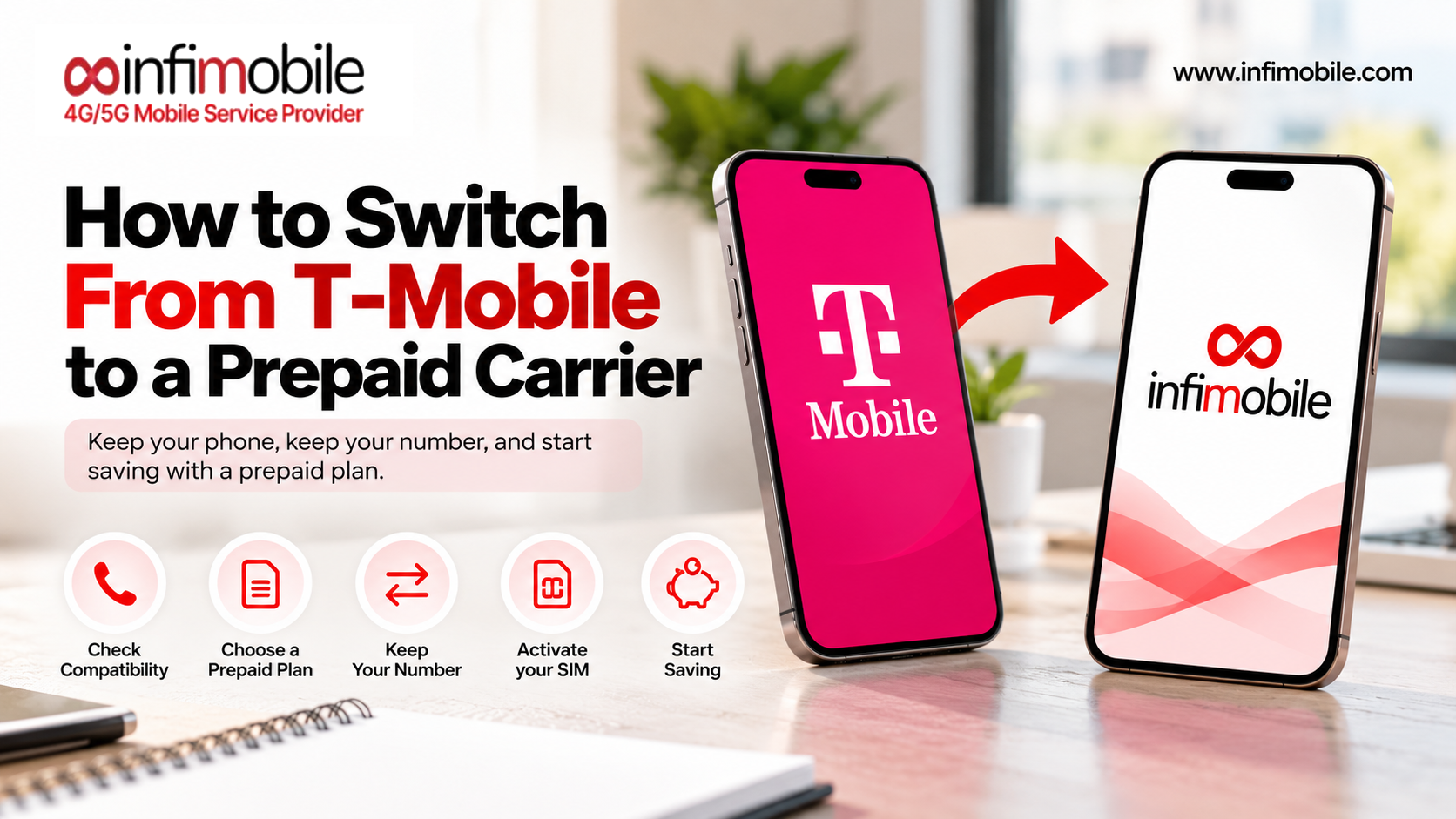
The easiest way to transfer your phone number to a new carrier is to let the new carrier handle it. Gather a few details from your current provider, start the port at checkout with the new carrier, and leave your old service alone until the transfer finishes. No cancellation call, no waiting on hold, and in most cases, your number is live in less than a day.
That sounds simple, and it is, as long as you do the steps in the right order. This guide explains how number porting works, what to gather first, where to find your details at major carriers, what can slow or fail the process, and how Infimobile handles it.
Table of Contents
- Short-answer
- How Number Porting Works
- Step 1: Confirm You’re Ready to Port
- Step 2: Gather the Four Details You Need
- Step 3: Turn Off Number Locks
- Step 4: Start the Port With Your New Carrier
- Step 5: Wait, Activate, and Test
- How Long Does Porting Take?
- Why Ports Get Delayed or Rejected
- Special-cases
- How Infimobile Keeps Porting Simple
- Faqs
The Short Answer
Here is the whole process in five lines:
- Make sure your phone and number are eligible. Your phone should be unlocked and compatible, and your current line should be active.
- Gather four details: your phone number, your account number, your transfer PIN, and the name and billing ZIP code on the account.
- Turn off any number lock your current carrier has applied.
- Choose “Port In” when you sign up with the new carrier, and enter your details.
- Keep your old service active until the new carrier confirms the number has moved.
If your phone supports it, choosing an eSIM can make it even easier because there’s no card to wait for.
How Number Porting Works
Number porting moves your existing phone number from one carrier to another. Under federal rules, you can generally keep your number when you change providers in the same area.
The key detail is who starts the process. You don’t ask your old carrier to release your number. Instead, you give your information to the new carrier, and it sends a request to your old one. Once your old carrier receives a valid request, it has to process it.
The Federal Communications Commission’s consumer guide makes several useful points. Your old company cannot refuse to port your number even if you owe a balance or termination fee, though you still owe what you owe. You shouldn’t terminate service with your current company before starting service with the new one. Companies may charge a porting fee, but you can ask for it to be waived. And for moves between wireless providers, you may be able to use your phone within a few hours.
That’s why the order matters: new carrier first, old service active until the transfer finishes, then the old line closes on its own.
Step 1: Confirm You’re Ready to Port
Before you gather anything, check three things.
Your line is active. Your current service should be active and in good standing. A line that has been shut off can be harder to port.
Your phone is unlocked and compatible if you plan to keep it. A phone locked to your old carrier won’t work on a new network until it’s unlocked. Unlock rules vary by carrier and have changed recently, so check your carrier’s current policy. Infimobile asks for phones that support 5G or 4G LTE and VoLTE. Dial *#06# to find your IMEI number, then enter it in the compatibility checker at infimobile.com/compatible.
You’re staying in the same area. Porting generally works when you stay in the same geographic area, which covers most mobile moves.
Also decide whether to use a physical SIM or an eSIM. Apple says iPhone 14 models and later bought in the U.S. can only be activated with an eSIM, so those phones have no SIM tray. Most Android phones still have a tray, and many support eSIM too.
Step 2: Gather the Four Details You Need
Nearly every port needs the same four pieces of information:
- Your phone number, the full 10 digits you want to keep.
- Your account number with your current carrier. This is usually not the same as your phone number.
- Your transfer PIN, also called a Number Transfer PIN or port-out PIN. It’s a temporary code generated by your current carrier to confirm you own the number.
- The account holder’s name and billing ZIP code, exactly as they appear on your current account.
Step 3: Turn Off Number Locks
Carriers protect accounts from fraudulent transfers with extra security features. They’re good protections, but they’ll block your own port if they’re left on.
- Verizon Number Lock: Verizon says it must be disabled before a number can be moved. You can turn it off by dialing *611 or in My Verizon.
- AT&T Wireless Account Lock: This must be turned off before you request a PIN. You can toggle it in the myAT&T app under your profile and security settings.
- T-Mobile Port Out Protection: If it’s on, disable it in your T-Mobile account before requesting the transfer.
If a port is rejected and you’re not sure why, a lock is one of the first things to check.
Step 4: Start the Port With Your New Carrier
Now you’re ready to place your order. On Infimobile, the process looks like this:
- Choose your plan on the plans page, and your network, T-Mobile or Verizon, where options are offered.
- Select your SIM type: a 3-in-1 physical SIM kit, or an eSIM if your phone supports it.
- Choose “Port In” instead of a new number.
- Fill out the port-in application form with your phone number, account number, transfer PIN, and the name and billing details on your old account.
- Review everything carefully. A single wrong digit or a mismatched ZIP code is the most common reason ports get delayed, so compare each field to your old account before you submit.
- Complete checkout. Infimobile then sends the request to your old carrier.
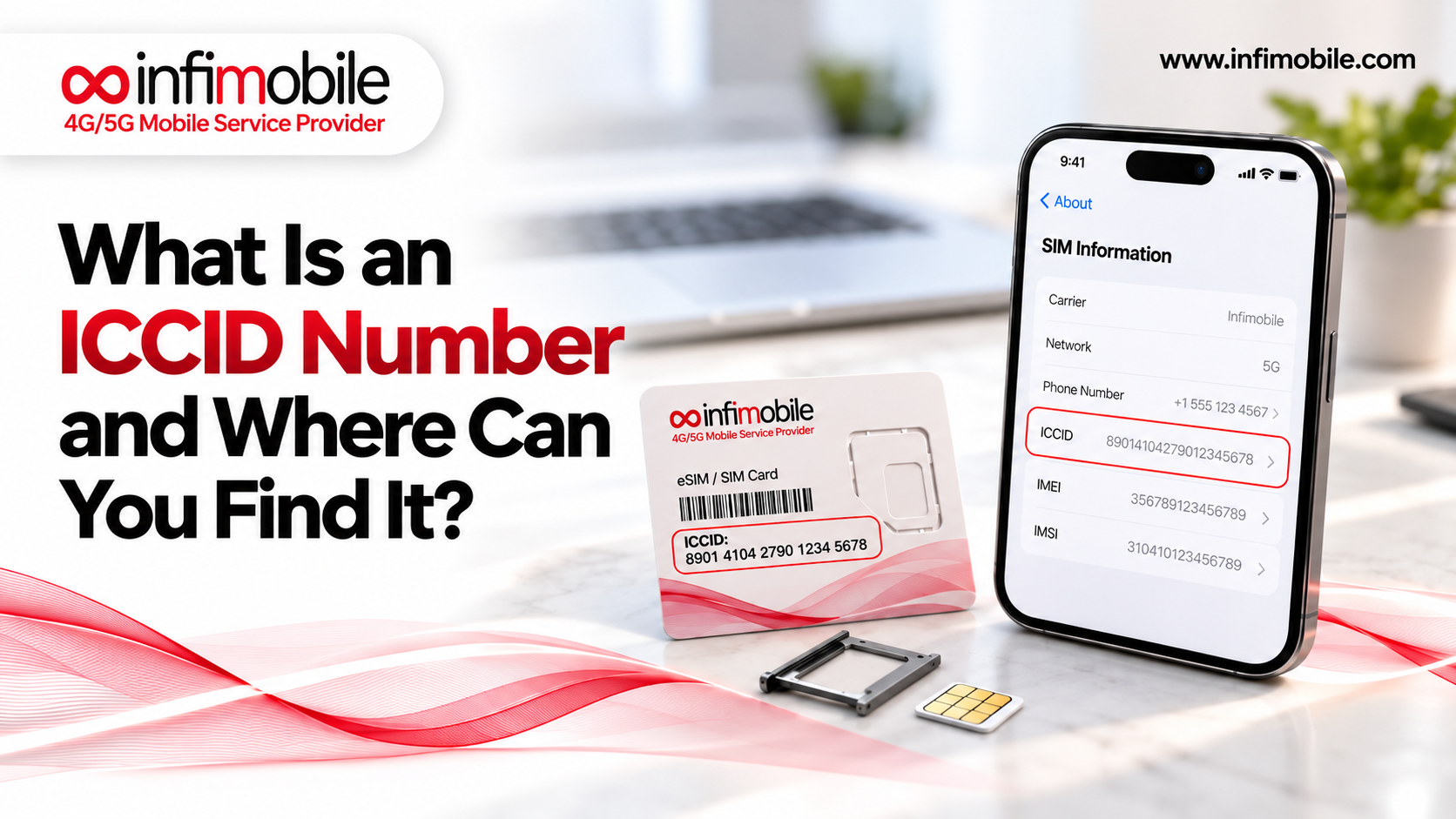
An eSIM can be the easiest option. With an eSIM, there’s no physical card to ship, so you can set up service as soon as your order is complete, using the setup instructions you receive. If your phone has no SIM tray, eSIM is the only option anyway. If you choose a physical SIM, Infimobile’s help center walks you through activation using the 8-digit activation code and the last 10 digits of the ICCID printed on the card.
Step 5: Wait, Activate, and Test
Once the request is submitted, the main job is patience.
- Keep your old service active. This is the rule people most often break. Don’t cancel your old line yourself. If you cancel before the port finishes, the number can be released, and you could lose it. The transfer closes your old account automatically.
- Watch for confirmation. You’ll get a notice when the transfer is complete. Some carriers also send a confirmation text to your old line, so keep that phone on and nearby.
- Restart your phone. When the port finishes, restart it or toggle airplane mode so it picks up the new network.
- Test everything. Make a test call, send a text, and confirm mobile data works. Check voicemail and turn on Wi-Fi calling.
- Handle the leftovers. Review your final bill, and turn off AutoPay once it’s paid.
How Long Does Porting Take?
For most moves between wireless carriers, it’s quick. FCC rules generally require simple ports to be completed within one business day, and in practice many finish in a few hours. Infimobile’s support page says activation typically takes 2 to 48 hours depending on your existing carrier, and a reasonable outside estimate for a standard mobile-to-mobile port is 48 hours.
A few situations can stretch that out:
- Information mismatches, such as a wrong PIN, account number, name, or ZIP code
- A number that was recently ported, since some carriers apply waiting periods
- Landline or VoIP numbers, which are often slower than mobile-to-mobile transfers
- Multiple lines or business accounts, which can involve extra verification
If your port is taking longer than expected, keep your old service active and check for a notice about what’s needed.
Why Ports Get Delayed or Rejected
Almost every failed port comes from one of a handful of causes, and each has a simple fix.
Wrong PIN or account number. Generate a fresh transfer PIN and double-check the account number in your online account. PINs expire, so an old one may no longer work.
Name or address mismatch. Your details need to match your old carrier’s records exactly, including apartment numbers. If you’ve moved recently, update your old account first.
A number lock is on. Turn off Number Lock, Wireless Account Lock, or Port Out Protection, then resubmit.
You’re not the account holder. Many carriers only let the primary account holder or owner generate the PIN. Ask that person to do it.
The old account has a problem. Past-due balances don’t legally block a port, but account holds, suspended service, or pending changes can slow things down.
You canceled too early. If the old line is already closed, the number may be released. Contact the new carrier’s support right away to see if it can be recovered.
If something goes wrong, you can also file a complaint with the FCC at consumercomplaints.fcc.gov.
Special Cases
Porting several lines. Each line usually needs its own PIN, or the same PIN may work for lines on one account, depending on the carrier. Check how your carrier handles it before you order.
Prepaid to prepaid. The process is the same, though some prepaid carriers apply waiting periods after a recent switch. If a port is rejected for that reason, your old carrier can tell you when you’re eligible.
Business accounts. Business and government accounts often use different steps. Verizon, AT&T, and T-Mobile all handle them separately, so contact the account manager.
Moving a landline or VoIP number. This is often possible but can take longer, and you’ll want to confirm the details with the new carrier first.
How Infimobile Keeps Porting Simple
Infimobile is built for people bringing their own phone and their own number. A few features make the process easier:
- A port-in option built into signup. You choose Port In when you activate, fill out the port-in application form, and Infimobile handles the request to your old carrier.
- A compatibility checker. Check your address and phone at infimobile.com/compatible before you order.
- A trial port-in. The account portal offers a trial port-in that lets you test service on a temporary number before moving your real one.
- SIM or eSIM. Choose a 3-in-1 SIM kit or an eSIM, depending on your phone.
- Annual prepaid plans. On its plans page, the 12GB plan is $90 for 12 months (about $7.50 a month), the 20GB Premium plan is $120 (about $10 a month), and Freedom Unlimited is $175 (about $14.58 a month), with unlimited data, speeds reduced after 40GB, and a free 12-month hotspot add-on of up to 10GB per month. Confirm current pricing at infimobile.com/plans, and check refund terms for your plan at checkout.
- Support. The team is reachable at +1 (855) 484-1855 or +1 (678) 608-1414, or by email at support@infimobile.com.
Frequently Asked Questions
1. What is the easiest way to transfer my number to a new carrier? Start the port with your new carrier. Gather your phone number, account number, transfer PIN, and the account name and billing ZIP code; turn off any number lock, choose Port In when you sign up, and keep your old service active until the transfer finishes.
2. Do I need to cancel my old carrier first? No. Canceling first can cause you to lose your number. Once the transfer completes, your old line closes automatically. You’ll still get a final bill, which you should review.
3. How long does it take to transfer a phone number? Often a few hours, and generally within a day for simple wireless ports. Infimobile’s support page says activation typically takes 2 to 48 hours depending on your existing carrier. Mismatched details or a recently ported number can take longer.
4. Can my old carrier refuse to release my number if I owe money? No. Under FCC rules, your old carrier can’t refuse a valid port request because of an unpaid balance or termination fee. You still owe the money, but it can’t be used to hold your number.
5. Is an eSIM easier than a physical SIM for porting? Often, yes. An eSIM doesn’t need to be shipped, so you can set up service as soon as your order is complete. It’s also the only option for phones without a SIM tray, such as iPhone 14 models and later sold in the U.S. Check that your phone supports eSIM first.
Transferring your number is easiest when you treat it as a sequence: gather your details, turn off locks, start the port with the new carrier, and let the old line close on its own. To get started with Infimobile, check your phone and coverage at infimobile.com/compatible and see current plans at infimobile.com/plans.
Start the port with your new carrier. Gather your phone number, account number, transfer PIN, and the account name and billing ZIP code; turn off any number lock, choose Port In when you sign up, and keep your old service active until the transfer finishes.
No. Canceling first can cause you to lose your number. Once the transfer completes, your old line closes automatically. You’ll still get a final bill, which you should review.
Often a few hours, and generally within a day for simple wireless ports. Infimobile’s support page says activation typically takes 2 to 48 hours depending on your existing carrier. Mismatched details or a recently ported number can take longer.
No. Under FCC rules, your old carrier can’t refuse a valid port request because of an unpaid balance or termination fee. You still owe the money, but it can’t be used to hold your number.
Often, yes. An eSIM doesn’t need to be shipped, so you can set up service as soon as your order is complete. It’s also the only option for phones without a SIM tray, such as iPhone 14 models and later sold in the U.S. Check that your phone supports eSIM first.
Often, yes. An eSIM doesn’t need to be shipped, so you can set up service as soon as your order is complete. It’s also the only option for phones without a SIM tray, such as iPhone 14 models and later sold in the U.S. Check that your phone supports eSIM first.